
A number of new features await you in the new version of JTL-Wawi. We have already presented many of them to you in the past few weeks in the form of developer diaries. This time, however, it’s not about new functions or functional enhancements, but about optimized user-friendliness: the new menu structure.
The task: Improved usability
One of JTL’s principles is not only to create new features for future releases of the Wawi, but also to improve existing ones. Testing our user interfaces for ease of use is an essential part of this. As our solutions have already undergone extensive enhancements in recent years, it was important to map these as well as future system enhancements in an organized structure. Accordingly, we took a very close look at the current menu navigation.
The path: optimization vs. habit
Change is always both a curse and a blessing. Even if there are improvements behind it, people remain creatures of habit and shy away from new and different things. We were well aware of this when we set about restructuring the menus. Whether existing customer or newcomer – the new menu navigation of JTL-Wawi should be catchy and logically comprehensible. Therefore, the adaptation and conversion also required some internal discussions between technical editors and development. Which function belongs to which menu item? Where would we look for certain elements? Were familiar dialogs still useful or perhaps outdated by new features? Below we show you what the result of the passionate discussions now looks like.
The goal: The new menu structure
From version 1.1, JTL-Wawi will receive a visual update – new icons:
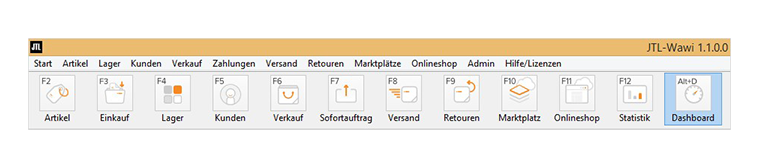
The new “Sales” icon includes, for example, invoice, invoice correction, listing and sales order. Other new additions are the icons for “Stock”, “Returns” and “Statistics”. The former “Products” area can now be found under “Items”, while the “Webshop” will be called “Online store” from the new version. The order and arrangement of the icons thus largely reflects the value creation process of our ERP.
We have also fundamentally revised the menu bar above and the advanced settings options contained there. From version 1.1, the menu items correspond as far as possible with the icons below them: Items, Stock, Customers, Sales, Payments, Shipping, Returns, Marketplaces and Online Shop.
In addition, you will find a “Start” menu item to start the most important tools, a “Payments” section containing payment-related settings and the extensive “Admin” section, which mainly contains settings for the Company, global settings and automation functions.
To give you an overview of the new menu structure, we are showing a first preview of the new structure here. If you want to know exactly what the new menu structure will look like from JTL-Wawi 1.1, you can view the images in a larger format in our guide.
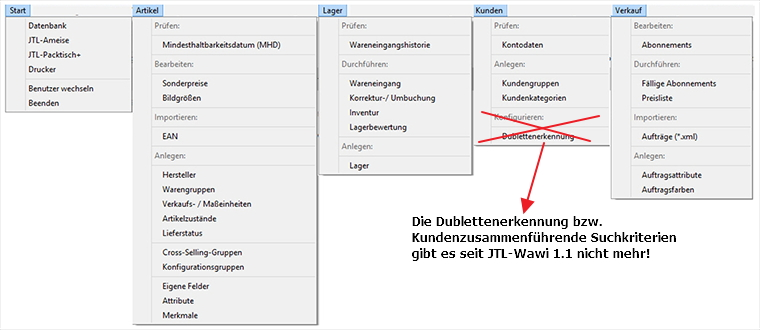

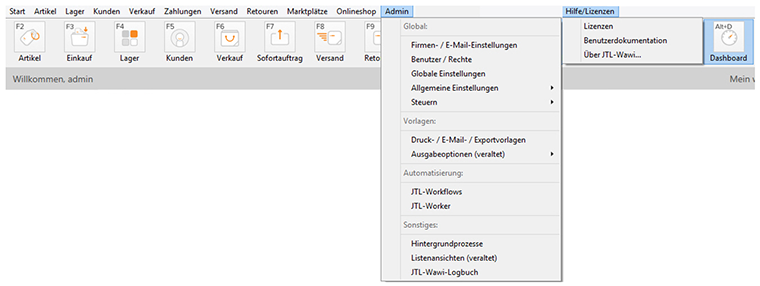
As mentioned above, we have paid particular attention to structuring all menus as logically as possible. At the top of a menu (for example, the “Items” menu), the dialogs that are primarily used for checking (for example, BBDs) can be called up, followed by dialogs that are regularly opened to edit data (for example, special prices) or to perform an action (for example, an inventory). This is followed by import or export options (e.g. order import) and generally one-off settings (e.g. creating product groups) and setups (e.g. setting up JTL-Shipping user accounts).
Of course, we are aware that there are some of you who nevertheless use our functions classified as “less frequently used” more often. In cases where JTL-Wawi dialogue boxes serve multiple purposes and therefore cannot be assigned to just one area of application, we have tried to find a common denominator. You will therefore find them in the application groups that experience has shown to correspond most closely or most frequently.
We have not only assigned new menu items to some dialogs, but also renamed them. Our aim was to find the clearest possible wording to guide you to the desired setting options. For example, “Recurring sales orders” are now called “Subscriptions” and are assigned to the “Sales” menu item. In the new “Customers” menu item, “IBAN management” has been renamed “Account details”. However, most of the names have only been changed marginally.
The following images show an impression of our working file in which we have moved and renamed the items. The upper term is the new name, the lower term is the former name of a dialog. A larger view of the new menu items from JTL-Wawi 1.1 can be found in the JTL-Guide.


Conclusion
This change also means relearning for our colleagues in Support. After all, they need to know the software inside out in order to provide you with the best possible support in the event of problems. We hope that you and our colleagues will find it easy to relearn. This blog post is intended to provide you with some assistance.
Would you like to see the new menu structure of JTL-Wawi directly in the Application? Then take a look at this video: