JTL-Wawi contains numerous templates for the most important business documents in the everyday life of an online or mail order retailer: for example, invoices, delivery bills, pick lists and many more. For release 1.4, our developers optimized the standard templates and the output module of our ERP.
In the first part of our blog series, we look at the basics of template management: What are templates and how do they work technically? We will also introduce you to the most important functions of the List & Label template editor integrated in JTL-Wawi – so that you can customize each template exactly as you need it.
The standard templates of JTL-Wawi
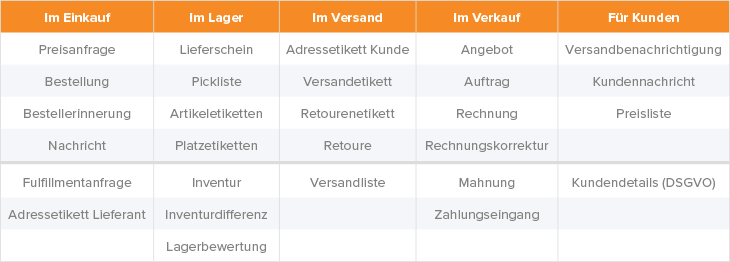
JTL-Wawi has had a template management system since 2009, which now contains around 30 standard templates for all important business documents for online business. Do you need a listing, an invoice or a delivery bill for your business, for example? Then you can create the document with just a few clicks. In technical terms, this is called “generating a document”.
During generation, our ERP system automatically accesses the associated template and fills it with the data of the current business transaction. At the end, the finished document is available for further processing. Further processing means, for example, that the document can be printed, saved or sent by email.
Both generation and further processing can be carried out manually with JTL or completely automatically according to previously defined rules.
Edit templates with List & Label
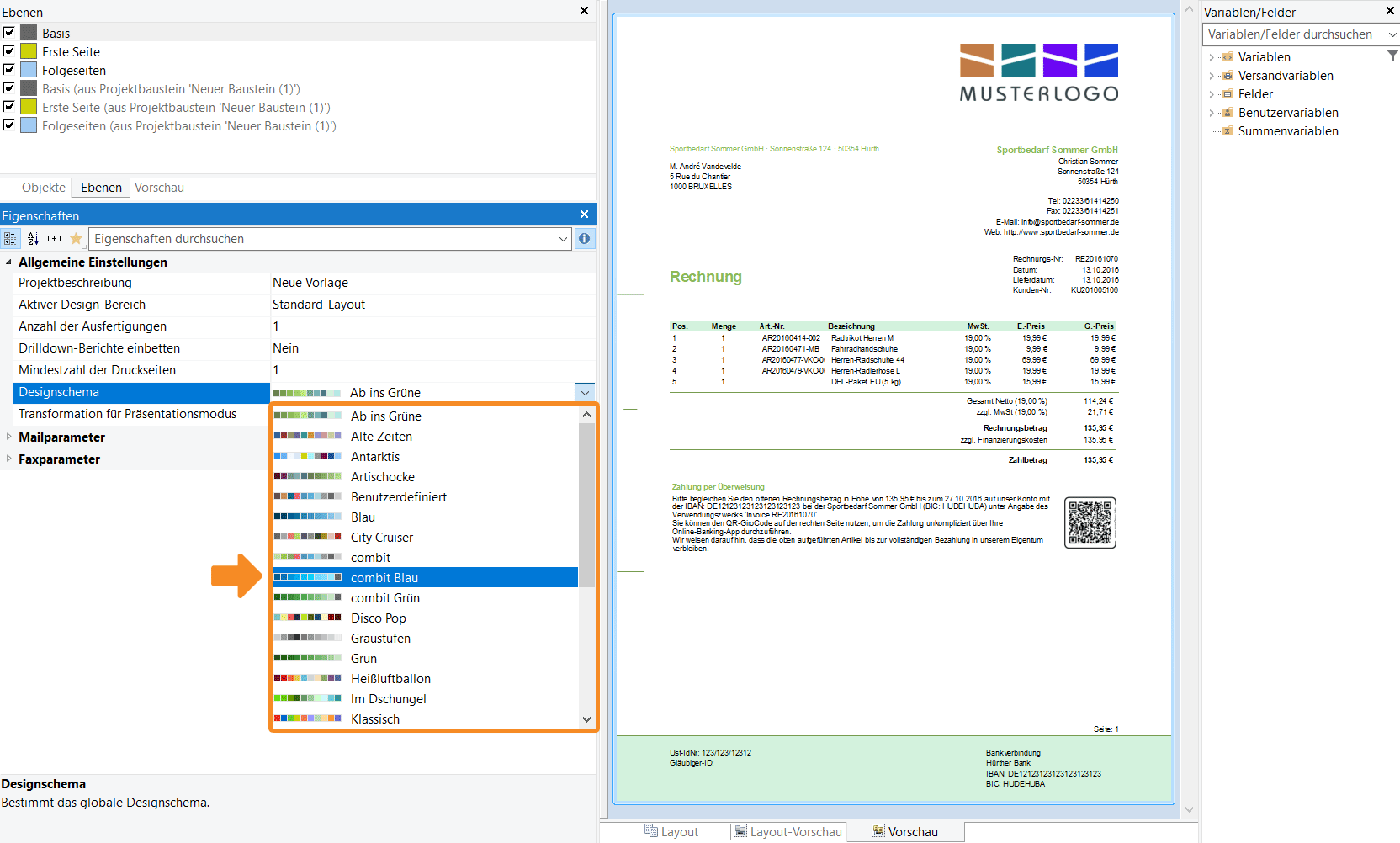
The List & Label editor is used in JTL-Wawi to create and customize our templates. This is a software component from the manufacturer combit, which we have integrated into our ERP system. List & Label is a very powerful tool for which the manufacturer also provides a comprehensive user manual.
If you would like to try customizing the templates yourself, you can find initial support in our online documentation JTL-Guide. Alternatively, you can commission a service partner with the customization – more on this later.
In the simplest case, after installing JTL-Wawi, merchants only need to exchange the sample logo of some standard templates for their own logo and they can use all business stationery directly.
A new look for the standard templates
The new standard templates were created by our in-house design team and give your customers a modern, high-quality impression. Within a template, you can choose from predefined color schemes or create your own design scheme. This makes it very easy to adapt the standard templates to your corporate identity.
Behind the scenes: How do templates work?
Would you like to customize the supplied templates yourself? Changing a logo is quite simple. You can do this with just a few clicks. But if you want to make more extensive changes, a little background knowledge is useful to find your way around the multitude of functions.
How a document is created
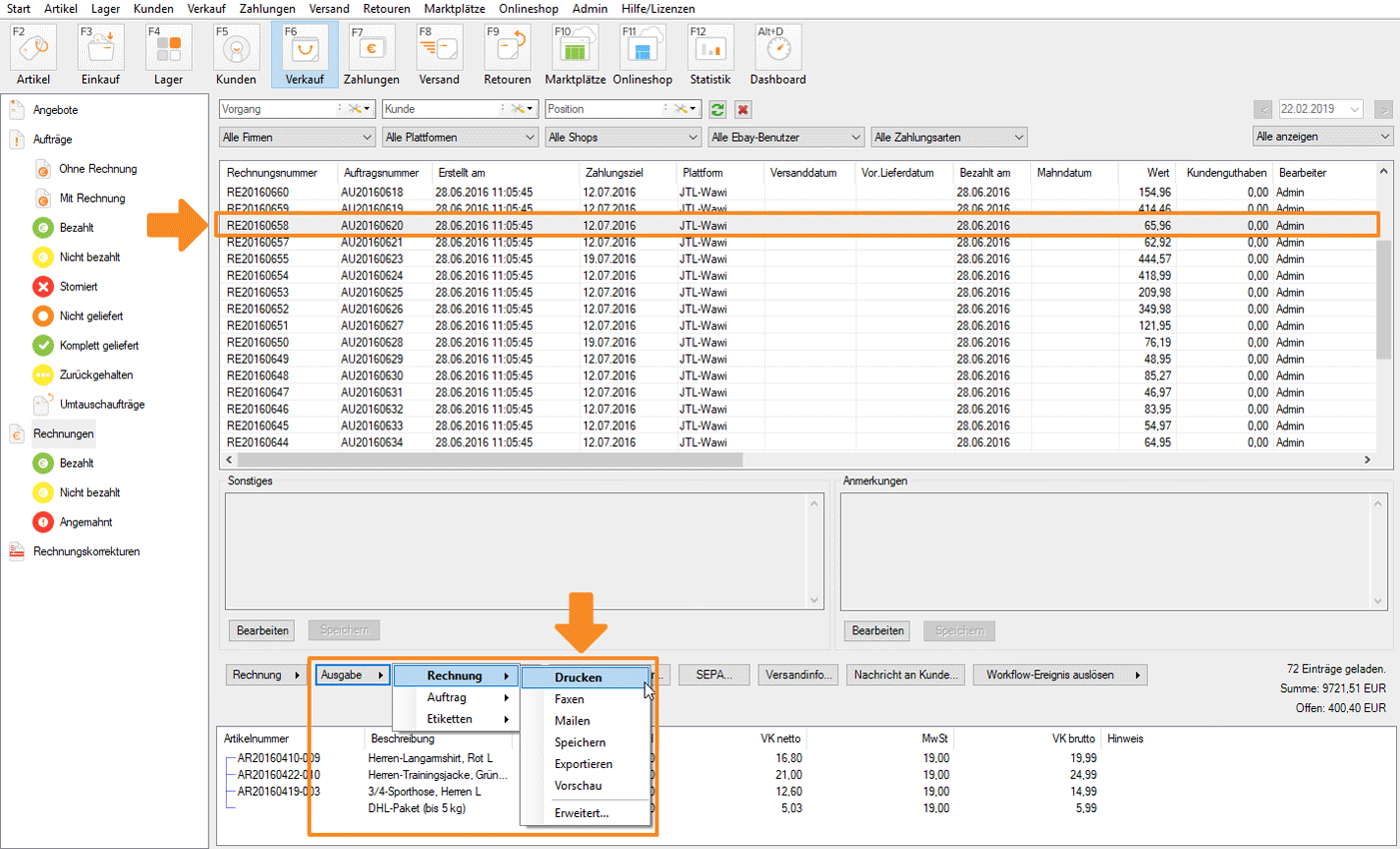
Imagine you want to send the customer “Daniela Engels” an invoice in PDF format by email. The generation of an invoice can be triggered in different ways. You can find one way, for example, in the Sales area: Here you can simply select the sales order from customer “Daniela Engels” and then select “Email invoice > ” as the output method.
In this case, the invoice of the sales order is the object for which an invoice document type is created. The connecting element in the middle is a template of type invoice:
Object (invoice) + template (invoice) = finished document (invoice for sales order)
Each template requires an object
What happens technically now? JTL-Wawi calls up some List & Label functions in the background and transfers the relevant sales order and customer data from the JTL-Wawi database to the module.
However, please note:
It is not possible to display a template without a database! Therefore, if you have just installed our ERP and there are no orders yet, you must first create an order and a customer manually. Only then will JTL-Wawi and List & Label have a data set on the basis of which they can create an invoice.
Generally speaking, you must have created at least one object per template type in JTL-Wawi if you want to view the corresponding layout preview in List & Label and make changes.
If you already have many objects (e.g. invoices) in the system, you can even select which data record you want to use to design your template in the template management. It is best to select a particularly typical data record as a so-called design object so that you can work in a practical way, do not forget any important data or can set the column widths optimally.
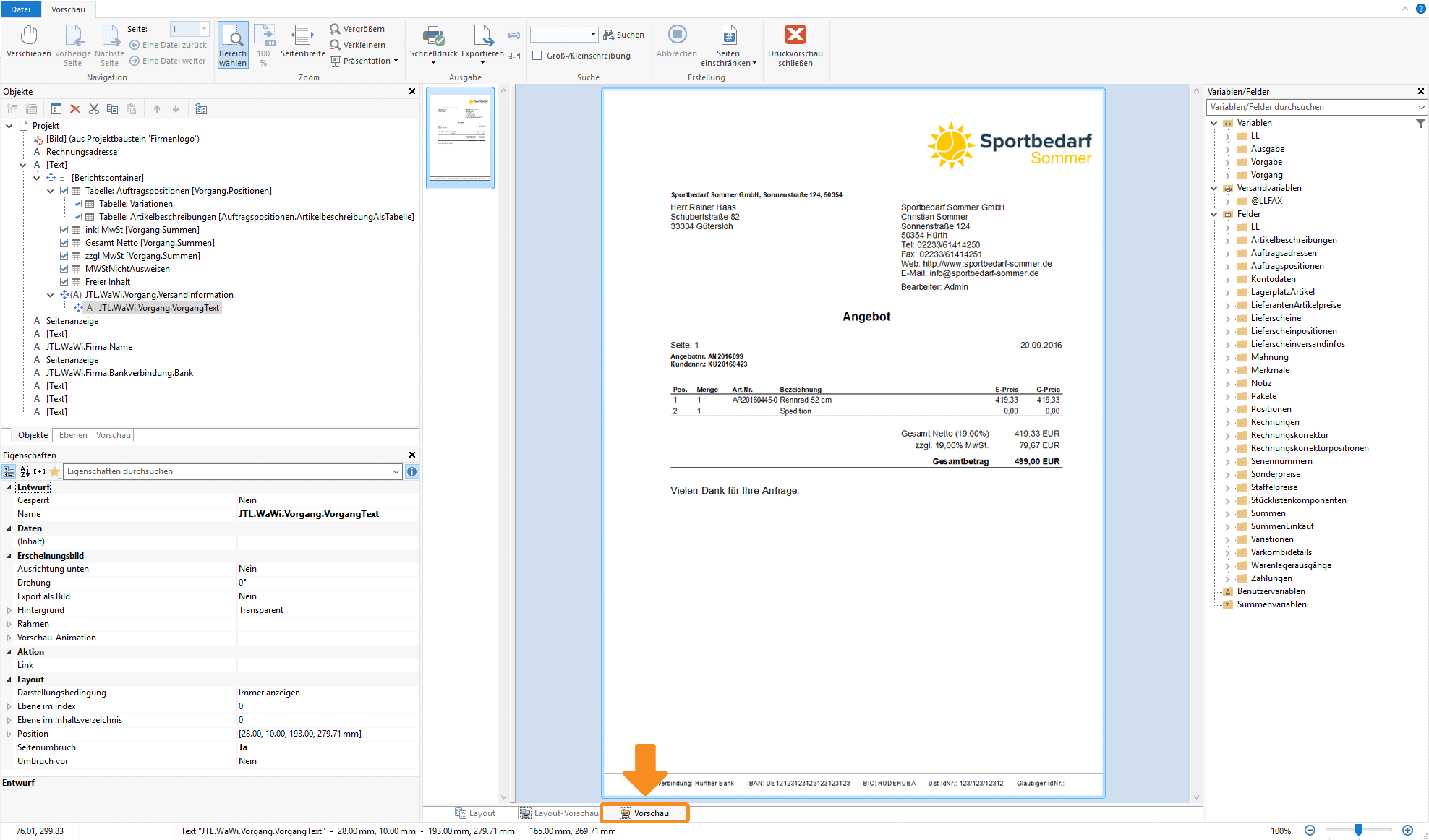
The variable tree in List & Label
There are different variables in the templates that are based on different data sources. Some data comes directly from the JTL-Wawi database, others are calculated values from List & Label itself. We don’t want to go into too much detail here.
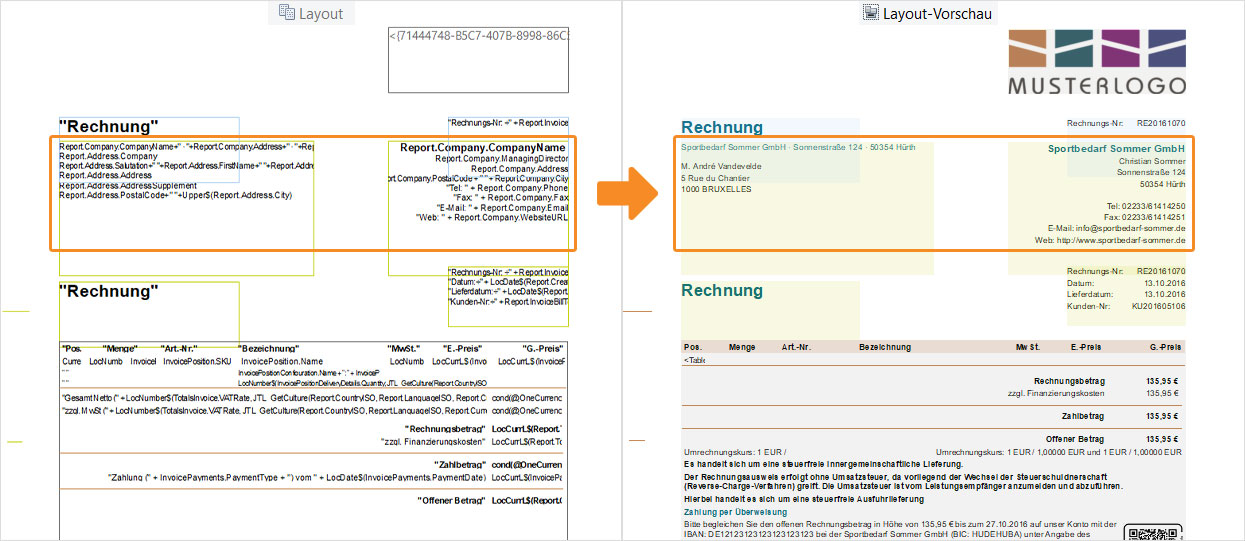
Frequently used variables are the name and address of customers or the SKU numbers and descriptions of products. Such general variables are available to you in a variable tree. You can add further variables to a template with a double-click. These have the structure of object paths, which result from their position in the variable tree. As an example, let’s take a look at the address of your company or your company name:
Variable name: Report.Company.CompanyName.
Explanation of the object path: There is a more abstract object Report, in which there is an object Company and in it JTL-Wawi finds the information CompanyName.
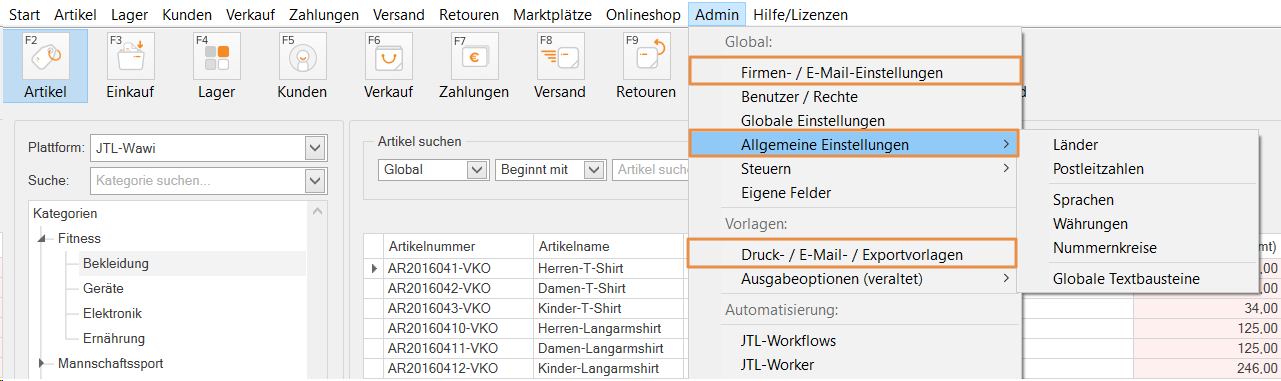
You can maintain information such as your Company address or account details as well as currencies, units or number ranges via the Admin menu under the Company and Email settings menu items:
Complete missing information in the templates
In addition to the well-sorted variable tree, JTL also provides many calculated values that are required in the everyday life of an online retailer. For example, the “total sum of all items” in the sales order and invoice or a “tax statement” in different constellations.
Are you still missing information that would be of particular interest for your product range or industry?
You can adapt our standard templates, adapt a copy of the template or create your own template. You can find out exactly how this works in the JTL-Guide under “Create template sets in JTL-Wawi”.
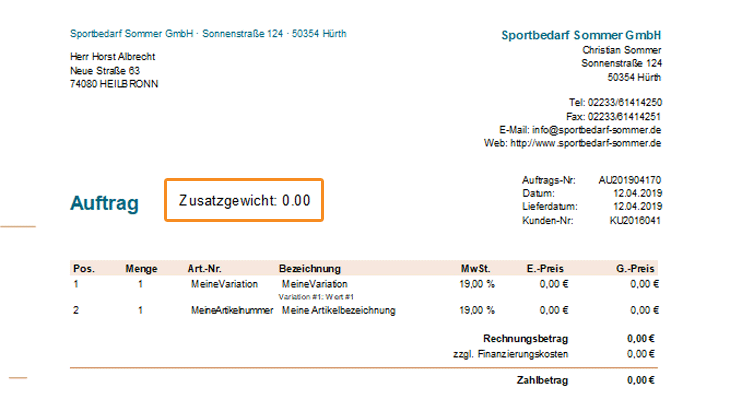
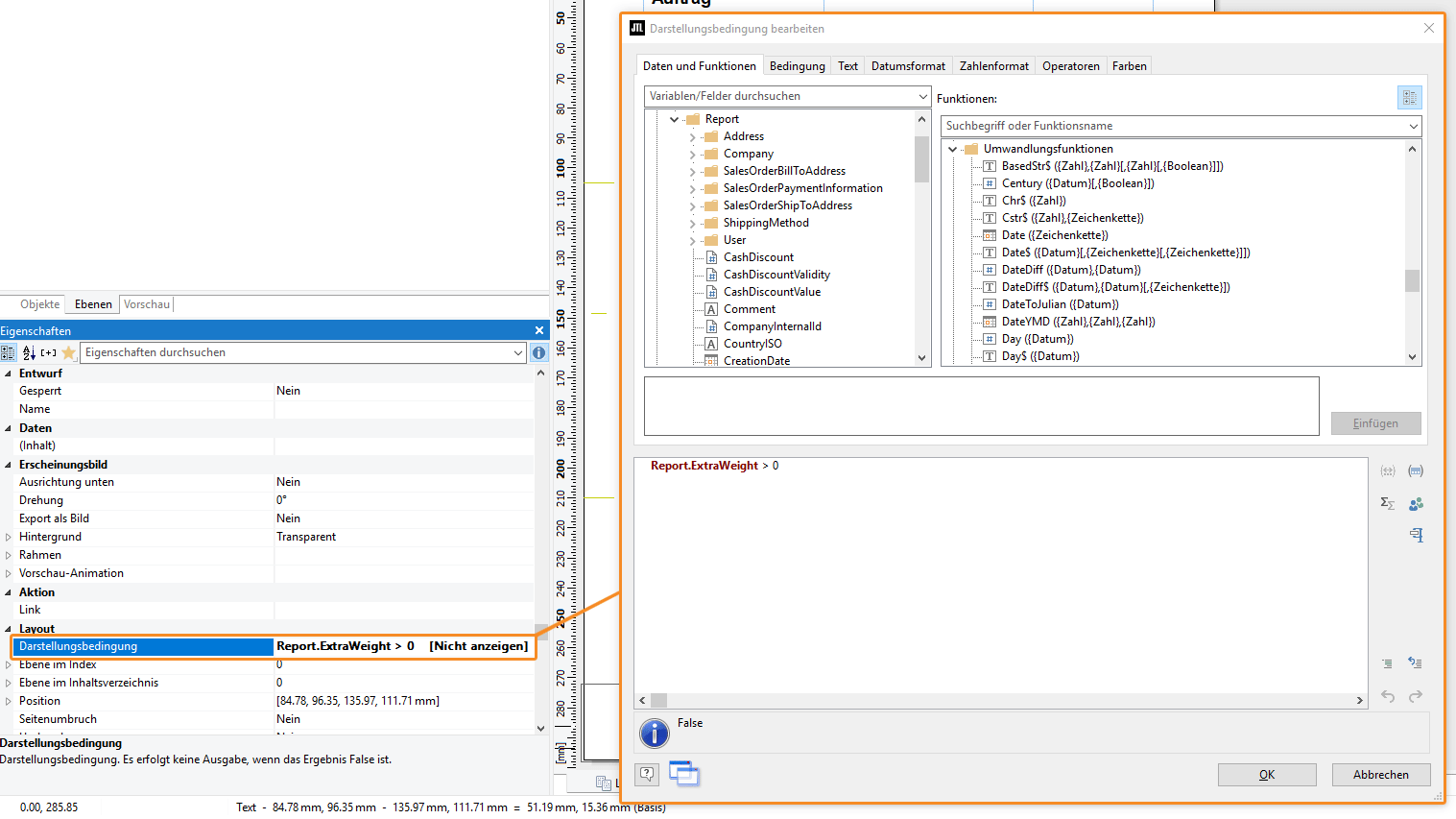
For example, would you like to display the additional weight of an order? Then create a separate area in the order template, add the variable and define the conditions for display:
Template: Order template
Object: Sales order
Variable: Report.ExtraWeight
Decimal places: str$(Report.ExtraWeight,0,2)
Display condition: Report.ExtraWeight > 0
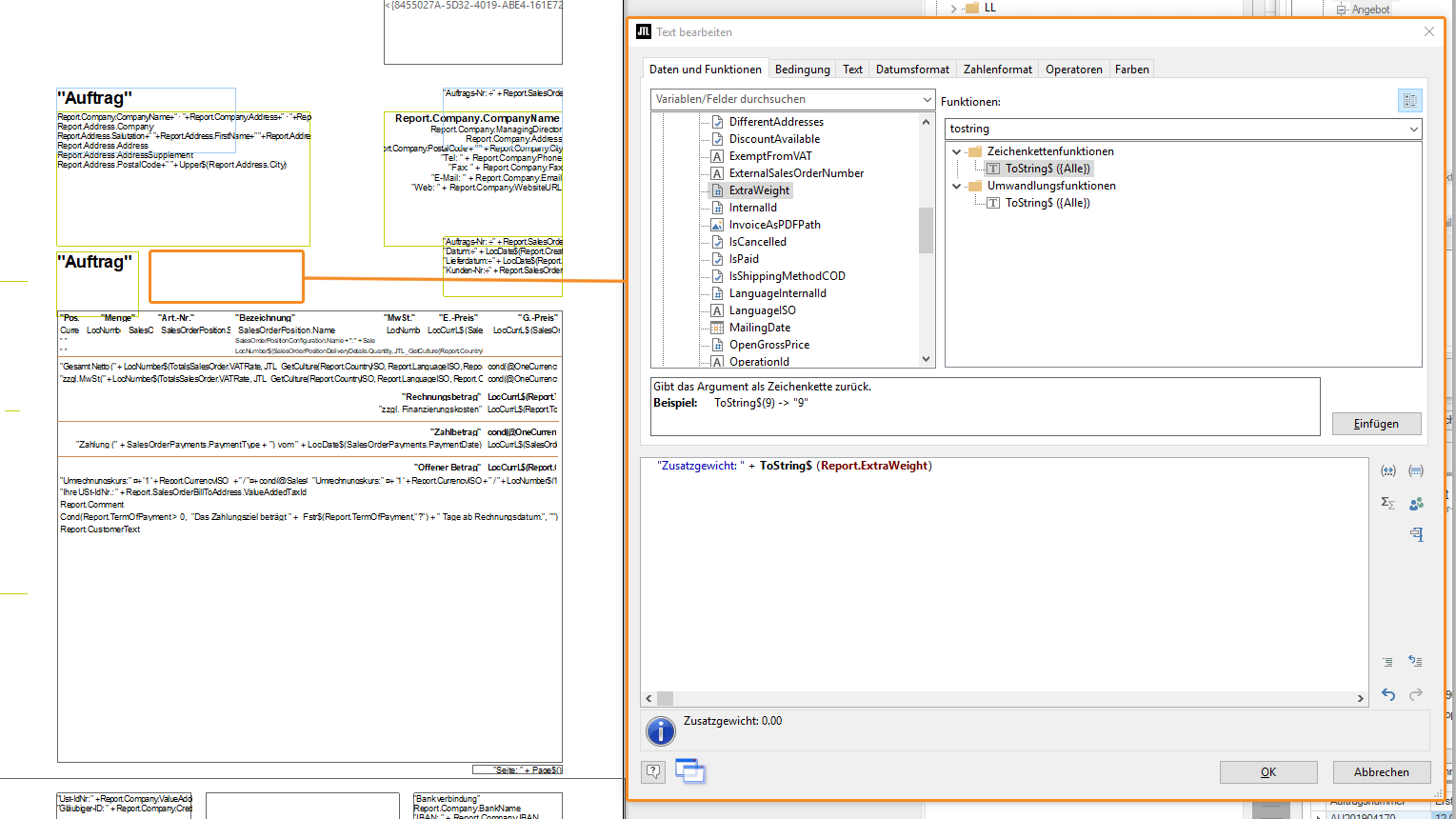
If you are still missing certain data or calculated values, you can use List & Label to access our database. Dealers can add their own variables via self-written SQL queries, which can then also be inserted into the templates. We recommend using lean SQL queries to ensure good performance when generating the documents.
Templates from a service partner
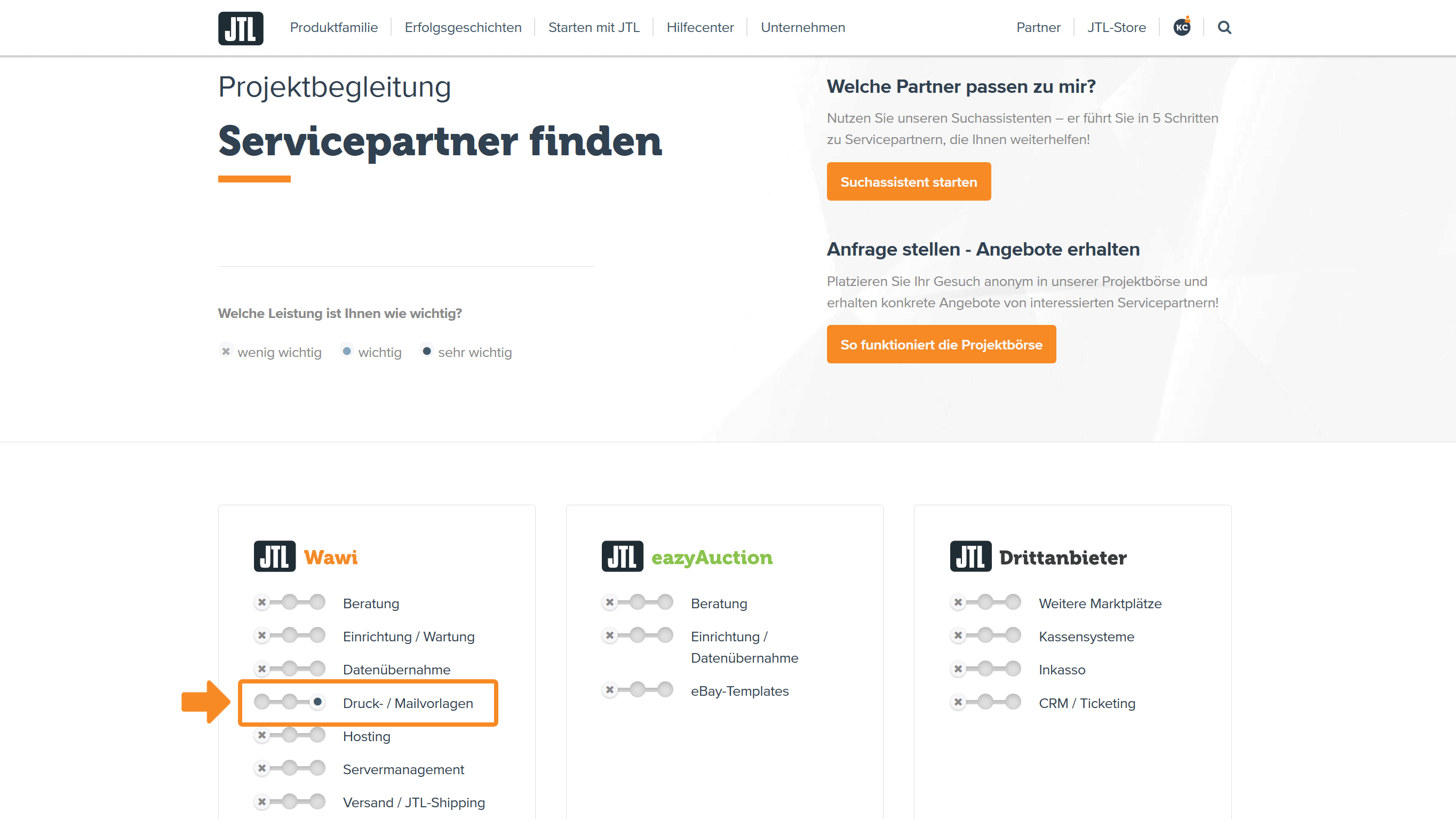
If the whole thing is too technical or too complex for you, you can also make use of the support of service partners. Some of them specialize in creating, adapting and expanding templates. You can find suitable agencies in the service partner search under the service heading Print/mail templates.
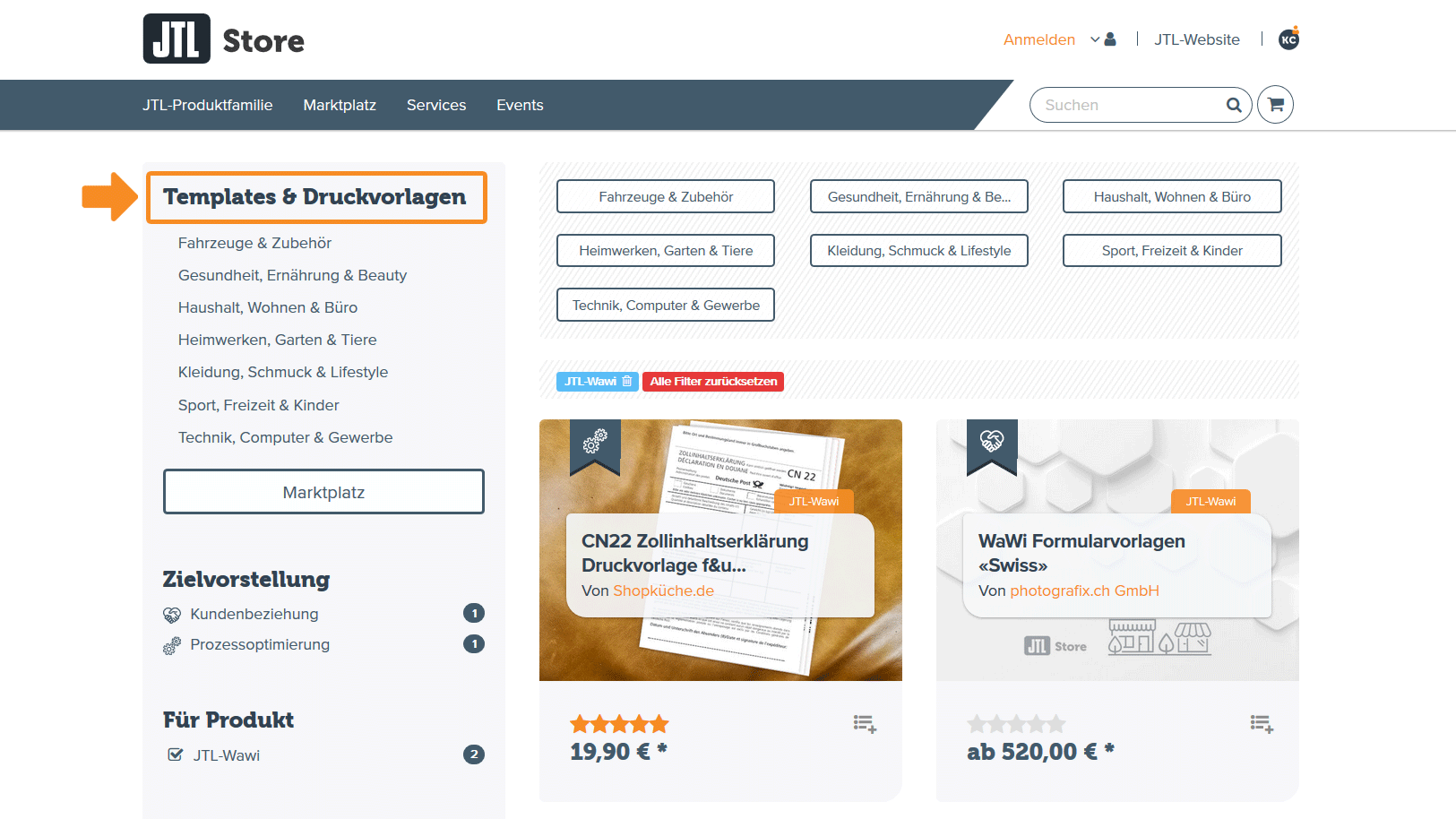
You can also find ready-made templates for special cases such as a customs declaration in our JTL Extension Store, under Print Templates.
The output: print, mail, save
Retailers want to send online business documents in different formats. The choice of format depends on the retailer’s internal business processes: While some primarily send PDF documents, others use machine-readable XML documents, which they store on servers and have automatically read by another system.
In JTL-Wawi, we call these different processes output methods. In other words, ways in which a document is output: printed, emailed or exported and saved as a file.
Output method email - An invoice for the customer
Our ERP system can manage the various templates and their output methods for you. This means that you set up the templates and their output as you need them and then printing, mailing and saving is fully automated. Almost all conceivable constellations can be covered.
An example: You create an invoice template for the language English, which should only be sent to those customers who belong to a certain customer group and have purchased from a certain platform. And only these customers receive the invoice with a localized email and the PDF attached.
Export output method - A purchase order from the supplier
You can also export most document types such as listings, sales orders and invoices as XML and CSV files. By using the DotLiquid template language, almost all export formats can be mapped as required.
To the JTL-Guide: Manage export templates
One example is ordering from a supplier: You store your orders in XML format via email or on a file server. Especially in drop shipping, this option is a way to fully automate order processing. You can find clear flowcharts for both cases in our online documentation.
To the JTL-Guide: Automate drop shipping
Watch the video: Orders in XML format
What you can expect in part 2
As you can see, JTL-Wawi’s template and output management is very powerful. In the second part of the blog series, we will introduce you to the new features that you can work with from JTL-Wawi 1.4. A migration of existing templates is not necessary – old templates will work as usual.
Part 2 - New in JTL-Wawi 1.4
- From the copy template to the building block library
- Create templates more easily with understandable variable names
- The new, “global templates” for the output
- The finished template in 5 steps
- Outlook for further developments
If you don’t want to wait until then, you can visit the JTL forum today. Here I present the current development status in a video and ask service partners and customers who are already on 1.4 for feedback: