
As we test the new versions of our software in a beta phase with pilot customers before the official release, we receive feedback on many changes in advance. In this case, many of our bidders praised the new filter options in item management – a customization that offers great advantages for their daily business. Reason enough for us to shed some light on this in a developer diary.
Show me what I'm looking for
The filter function of our item management is a powerful tool for every retailer. It allows you to quickly and conveniently display items with certain attributes and conditions without having to manually search for them in your item database.
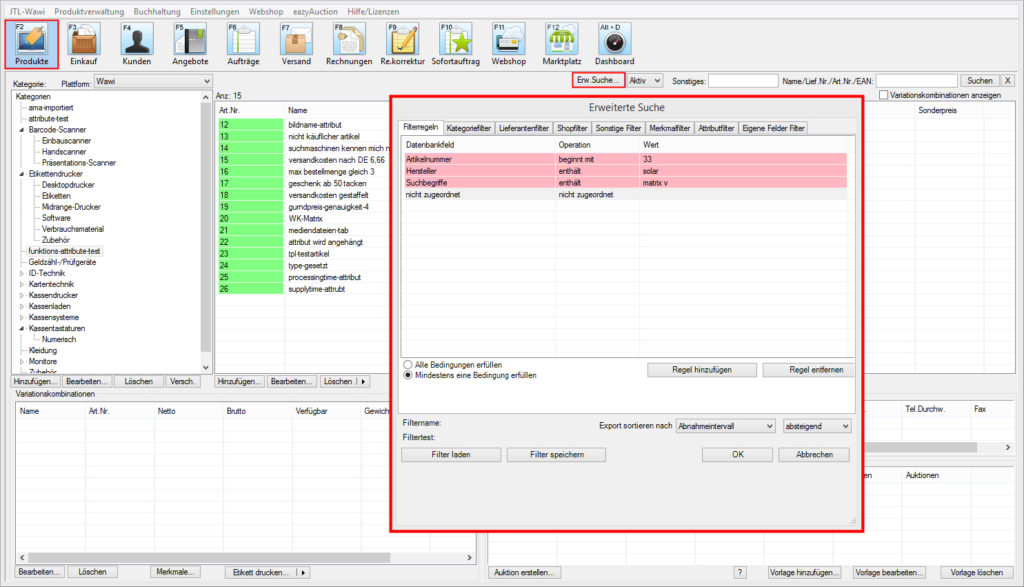
Even in previous versions of JTL-Wawi, users were able to filter items in the advanced search according to various parameters. To do this, it was necessary to call up the Advanced search and select the desired filters and string them together. What many customers wanted as an improvement, however, was the ability to save these filters without much effort, instead of having to click them together again or save them in a roundabout way.
More than just sustainability
A closer look at the filter function in item management showed us that there was room for improvement. We revised the entire function for JTL-Wawi 1.2. Starting with the way you put together filters, through extended selection options and expandability. But one thing at a time.
If you call up the “Advanced search” in item management in JTL-Wawi 1.2, you will see the following:
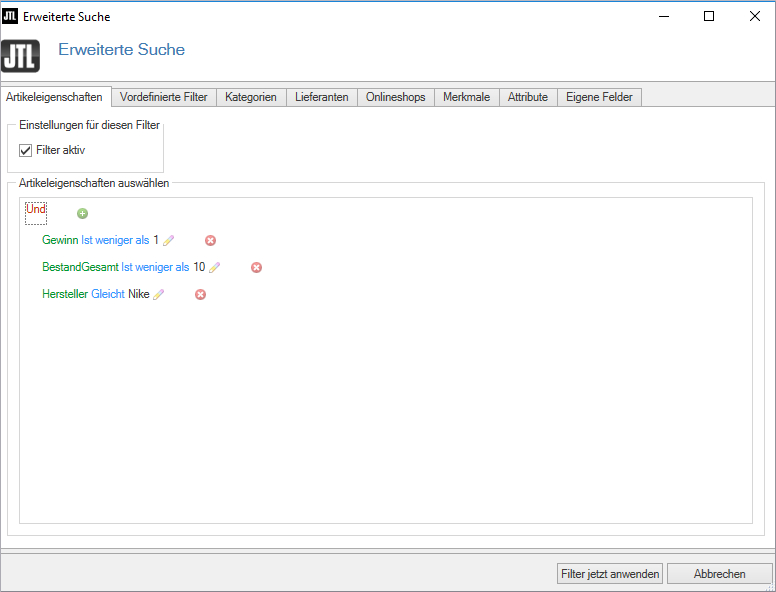
Here you can use the “+” button to gradually add individual properties such as manufacturer, profit, storage type and many more. You can also set conditions for this – “less than”, “at least”, “same size”, etc., which you can link with an “and” chain. You also have access to other areas of the search, such as categories, suppliers and so on.
We have added a few additional conditions and properties to each of these areas so that you can search for the items you want in your range in even greater detail in future. It was important to us to increase your selection options, but at the same time to simplify usability – that’s why everything can be accessed in just a few clicks and can be strung together in any filter chain.
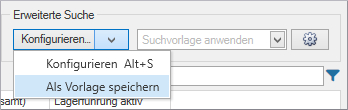
The option mentioned above to use filters created in this way permanently was particularly important. To ensure that they are not lost every time, we have therefore added the much-requested simplified save function. With JTL-Wawi 1.2, you can create your filters and save them by clicking on “Save as template”. This saves you time compared to the previous process and increases your efficiency.
If you want to adjust or change a filter at a later date, this is also possible – in the filter management. This provides an overview of the filters created so far. Here you can also completely remove filters that have already been set.
If you want to make these filters available to other users of the system, you can share them as an admin. This allows you to give your employees access to any number of filters you have defined.
For some users of our ERP, this “do it yourself” set of filters may be more than they need. We have also made provisions for this situation. Under the “Predefined filters” tab, merchants will find a range of common filters that should be of interest to all JTL customers.
Voices of the pilot customers
We already mentioned it at the beginning – our pilot customers have already given feedback on the new filter functions. Some of the statements may give you a good idea of where the new feature is helpful:
“It simplifies all the marketing around the products: ‘Throw me items that are doing well in the store, but I only have things in my FBA warehouse’. Since I want to save on shipping fees, I put some in my own warehouse. I can identify poorly performing items much more easily. In fact, I can now identify them in the first place.”
“Extremely important: Show me FBA listings that have FBA stock = 0, but stock >= 5. An FBA listing sells nothing without FBA stock and creating two listings on one Amazon listing is unprofessional. I can immediately see items that I need to put into stock transfer or where I need to convert the Amazon listing into a SellerFulfilled listing.”
“I easily identify items for the “Sale” category, drag & drop them in, right-click to use the price calculation and off we go.”
“For my “New In” category: I put all the items I’ve created in the last 14 days in there. And I can remove them from the category again using negative filters.”