
As already announced in the blog post “Optimal setup of the SQL database”, this time we provide you with some handy tips for maintaining the SQL server. Because even with proper operation, some problems occur over time, which can lead to a further loss of speed. That’s why you should always tighten the screws on your SQL server – you don’t let your car rust away over the years.
Databases - the what and why
JTL-Wawi uses Microsoft SQL databases as the central storage location for all databases. This is where our software stores item and customer information for the respective client of the software, but also any data on orders, eBay or Amazon. As all Wawi installations within a company need to access the same database, this explains their decisive influence on overall speed. The higher the number of users on a possibly slow and poorly set up SQL server, the longer it takes the system to process the desired data requests.
The hardware basis
Choosing the right hardware is a decisive factor for fast data access to an SQL server. A processor that is as powerful as possible allows the system to process all queries in the shortest possible time. We also recommend the use of a total of four hard disks. As an SQL query involves several write actions, the use of several hard disks can achieve a significantly faster data throughput. Ideally, users should set up data access as follows:
While users of the Express Edition already meet the recommended hardware requirements, there are some differences for owners of the Standard, Enterprise or Web Edition. As they can use more than one CPU per query and more random access memory, we recommend the following in addition to the points mentioned above:
Once you have fulfilled these hardware requirements, the first important step has been taken. The infrastructure for rapid database queries has been created.
Software fine-tuning
A big engine doesn’t make a fast car – it’s the fine-tuning that counts. The same applies to software. Just because your hardware is exemplary does not automatically mean that everything runs optimally. The right settings are crucial.
Your SQL server can be set to different versions for maximum compatibility. From version 1.0, Wawi supports all versions between SQL 2008R2 and 2014. The compatibility levels are graded as follows:
SQL 2008R2: 100
SQL 2012: 110
SQL 2014: 120
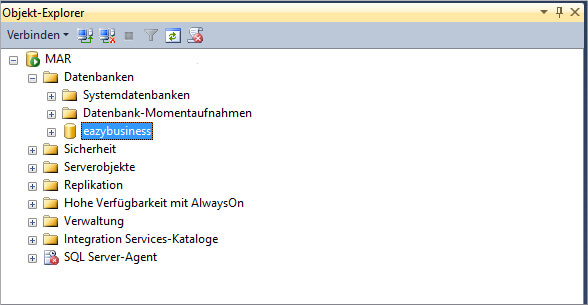
For the best possible performance, set your server to the actual version level. For example, if you are using SQL 2014, the value should be 120. To do this, select the database in the Object Explorer via SQL Management Studio, right-click to open the context menu and go to Settings. There you will find the compatibility level under the Options tab.
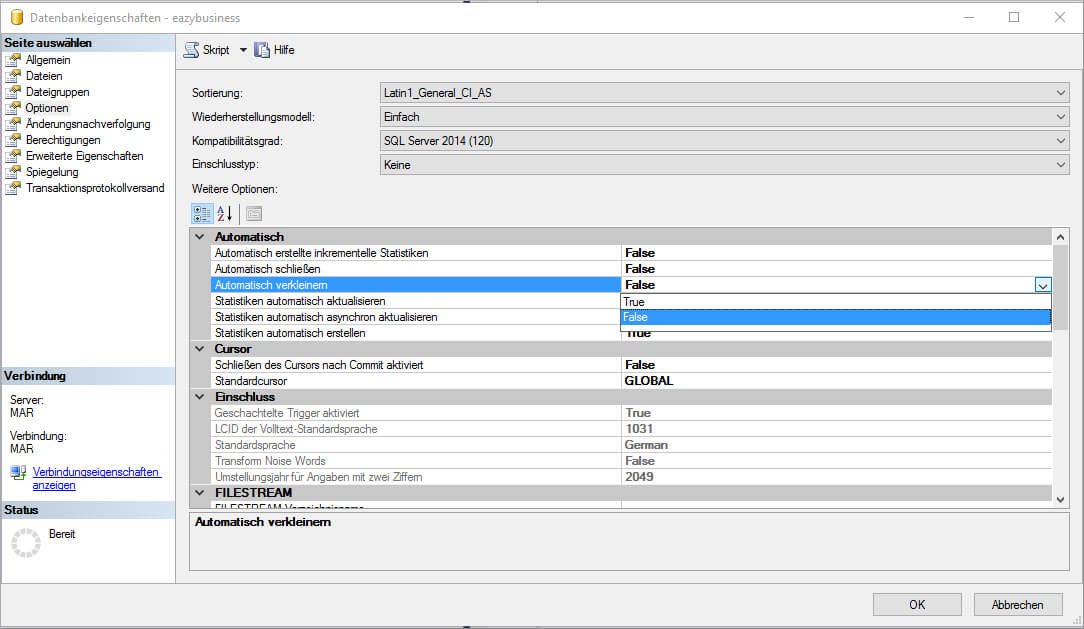
An important factor for better server performance is the deactivation of Autoshrink and Autoclose in the database. Autoshrink is constantly trying to reduce the size of the .mdf file. The result: the server is constantly busy with itself and also fragments the hard disk. Autoclose in turn empties your random access memory every time all connections to the server are closed. This may sound Good at first, but unfortunately it is not. This is because many important files have to be reloaded into RAM when the next connection is established – again reducing the performance of the server.
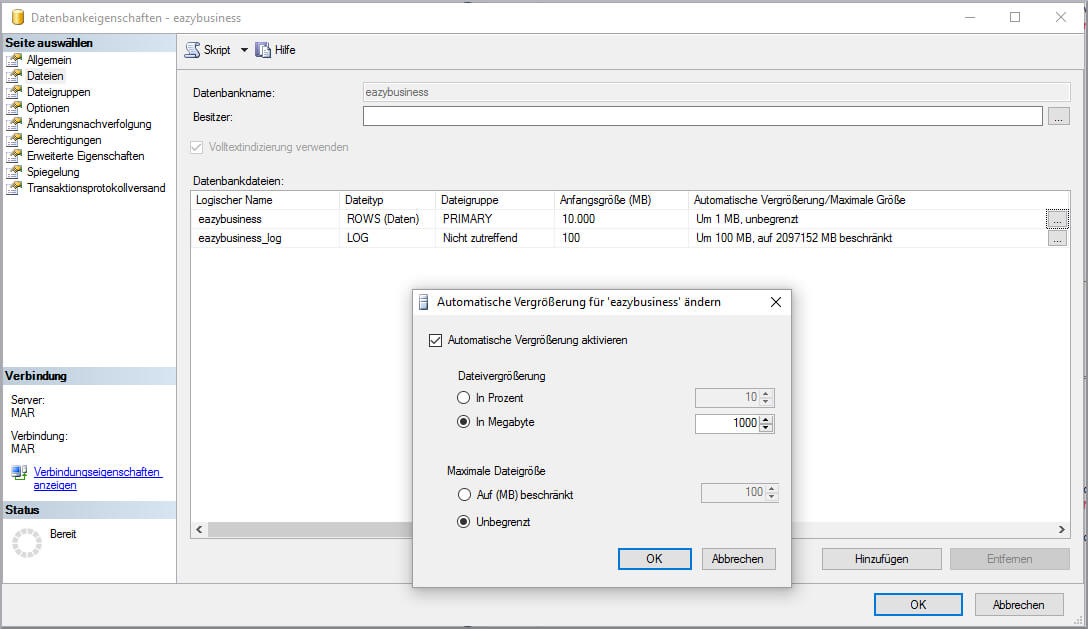
If you now predefine some file sizes, you save the system from having to change them itself in future. At the same time, you create a continuous file on the hard disk, while the automatic expansion by the system creates a fragmented version. This also has a negative impact on the speed of the database.
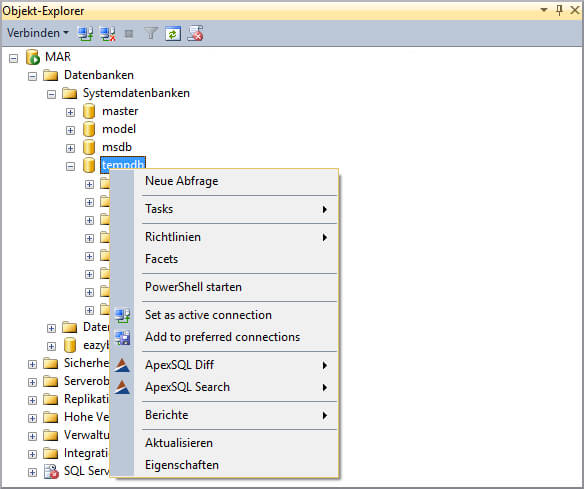
Special features of the SQL Server editions
Both the Express edition and the Standard, Enterprise and Web versions have a few special features when setting up the software.
Users of the Express version should make the following settings after following the steps above:
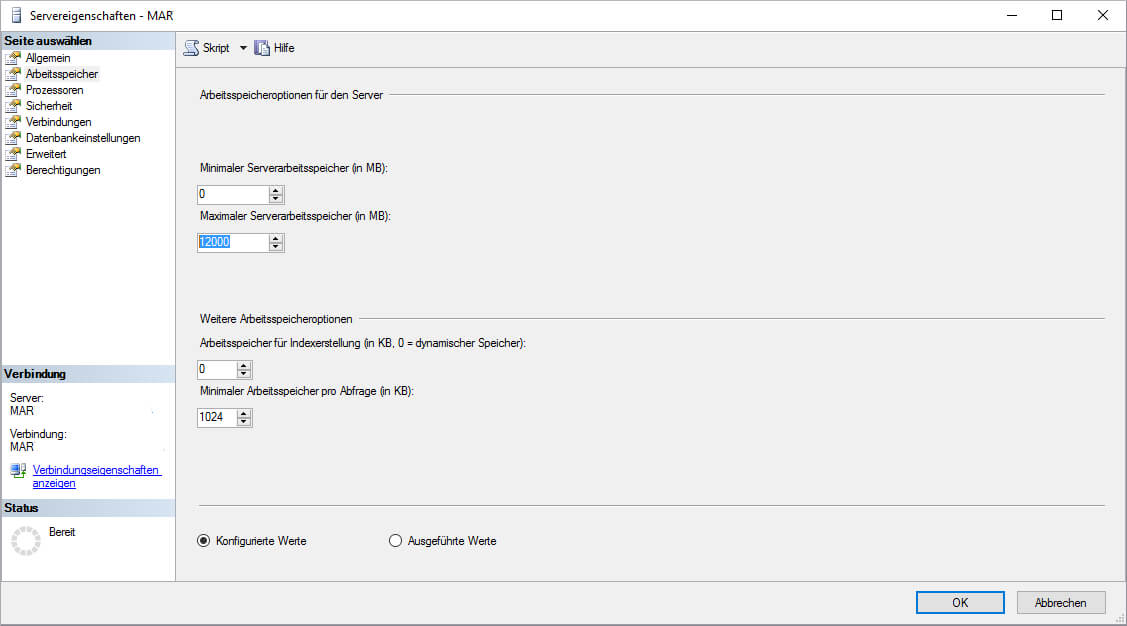
Users of the Standard, Enterprise and Web versions make the following settings after the above steps:
Conclusion
Once you have made all the settings accordingly, your database should be able to handle all types of queries much more smoothly. In order to maintain this status in the longer term, we will provide you with useful information on database maintenance in a future blog post.