With the new customer management of our ERP, you can now process typical customer requests even faster. In this feature preview, we present some optimizations in customer management based on selected topics: How can you take orders directly on the phone? What options are there for creating listings and granting a discount? How are complaint requests handled and refunds issued?
Please note that we use JTL order management in many examples. This module is still based on older technology and is currently being revised by our developers.
Customer management in online business
Customer inquiries are also ubiquitous in online and mail order retail: customers want to cancel orders, negotiate discounts, exchange a damaged item or enquire about the whereabouts of a parcel. Recently, retailers have also been receiving queries about the handling of personal data. Modern customer management enables you to process these inquiries as quickly as possible – and at the same time to appear informed and decisive to your customers. After all, margins in retail can be tight and the sale of some products is only worthwhile if order processing, shipping and delivery run smoothly. You should therefore be able to process typical customer concerns with just a few clicks of the mouse so that your customers feel well supported, but at the same time without incurring excessive personnel costs.
The customer advisor's workplace
The optimized customer management of JTL-Wawi works best with two monitors or a width work screen. This allows you to pursue two activities in parallel. For example, a main activity of product data maintenance and a secondary activity of telephone customer service. Fast working is made possible by a dockable window, called a widget, which displays all relevant customer data in a bundle or links it via quick access.
The article contains slideshows. Swipe left for pictures!
Working with two screens
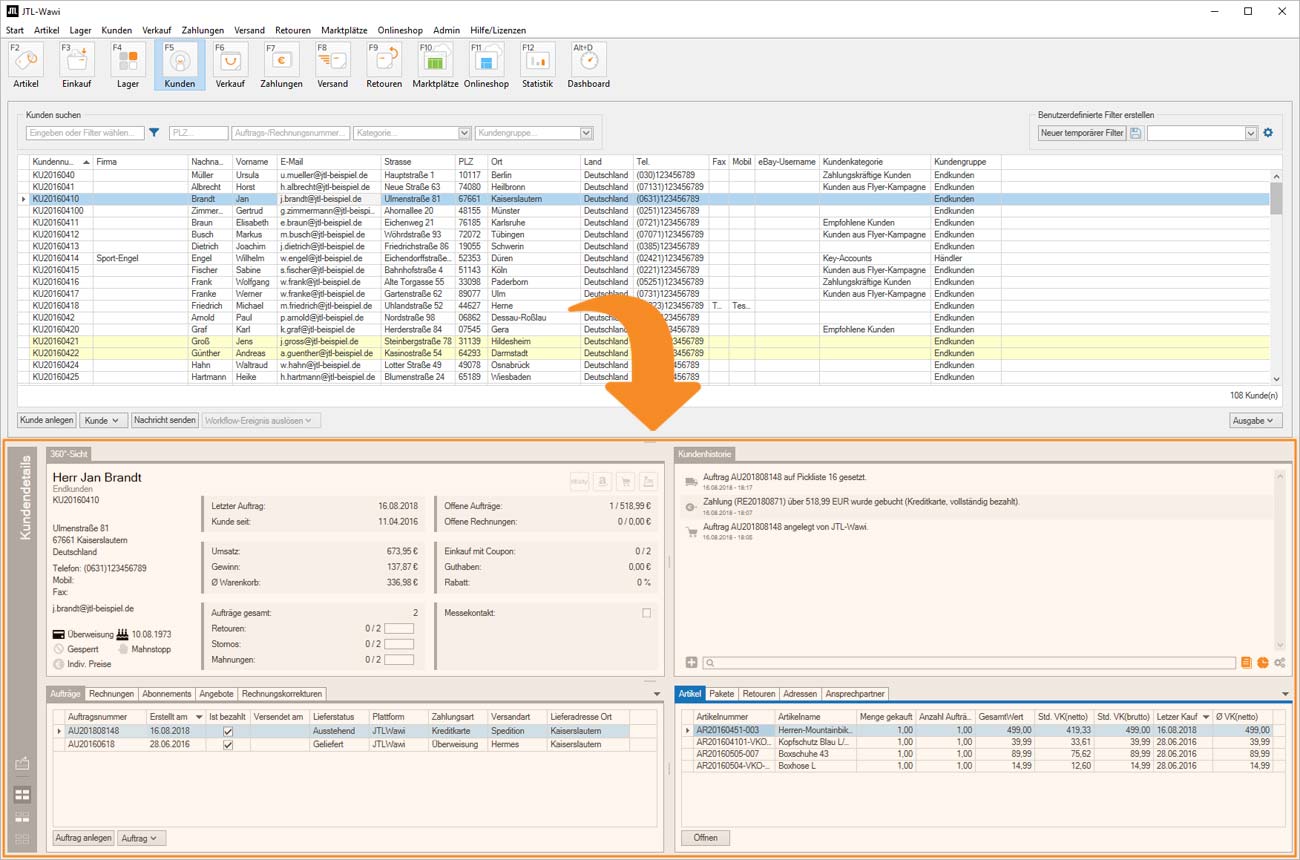
The customer widget is undocked and placed on the second monitor. This allows you to significantly increase the working speed and start many customer-related processes directly from the widget.
Save space on a monitor
The widget can be resized by folding and unfolding each section individually and changing its height and width. The settings are saved per user and session.
The 360-degree view of customers
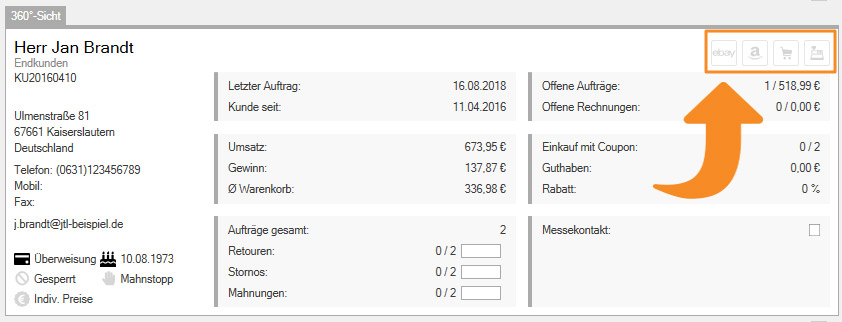
In order to be able to quickly assess customers, this view summarizes key information about the customer and their purchasing behaviour. The symbols at the top right indicate, for example, which sales channel you used to acquire the customer.
Orders on the phone
Business customers in particular often order by phone and want to negotiate the price. However, products that require explanation also generate telephone inquiries. Some retailers therefore see personal advice as part of their business model in order to recommend suitable or complementary products and achieve higher customer loyalty. Below you will find typical concerns from the B2B sector and how to handle them with JTL-Wawi.
Case 1: Existing customer wants to order
An existing customer calls and wants to place another sales order over the phone. During the call, you would like to store verbal agreements with the customer in the customer master data and output an additional agreement on the order document.
(1) Select customer & create sales order
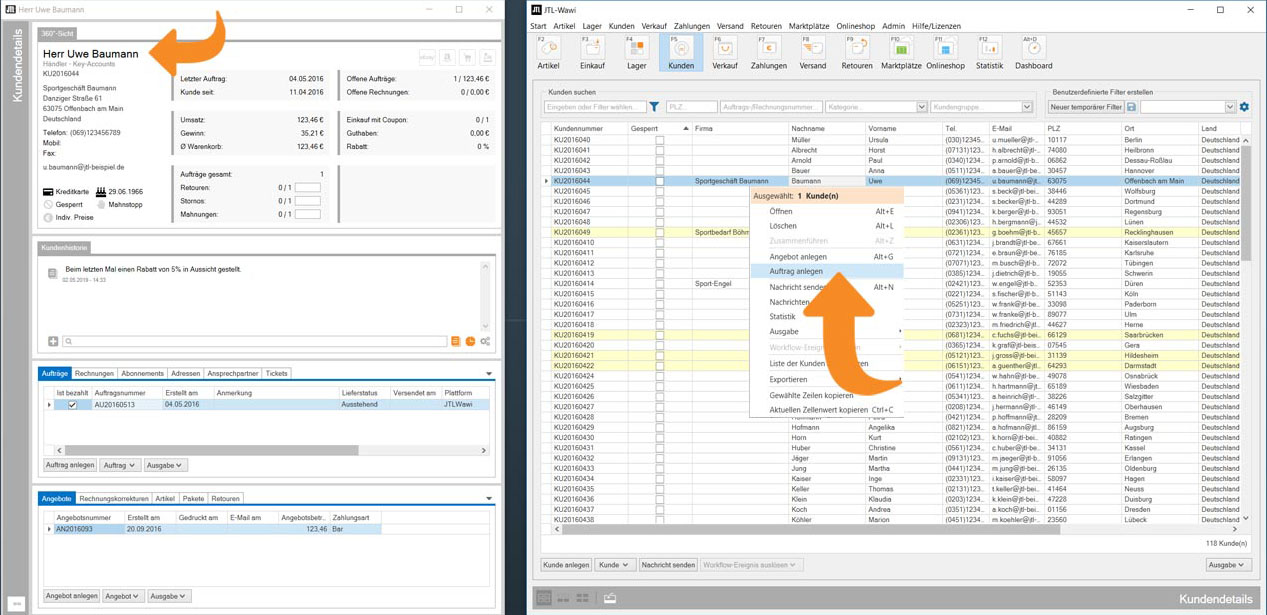
Press F5 to quickly access the customer overview. If the customer is already stored in the system, you can search for their data record. As soon as you select the line, the widget reacts and shows you details of the customer. You can also create a sales order here.
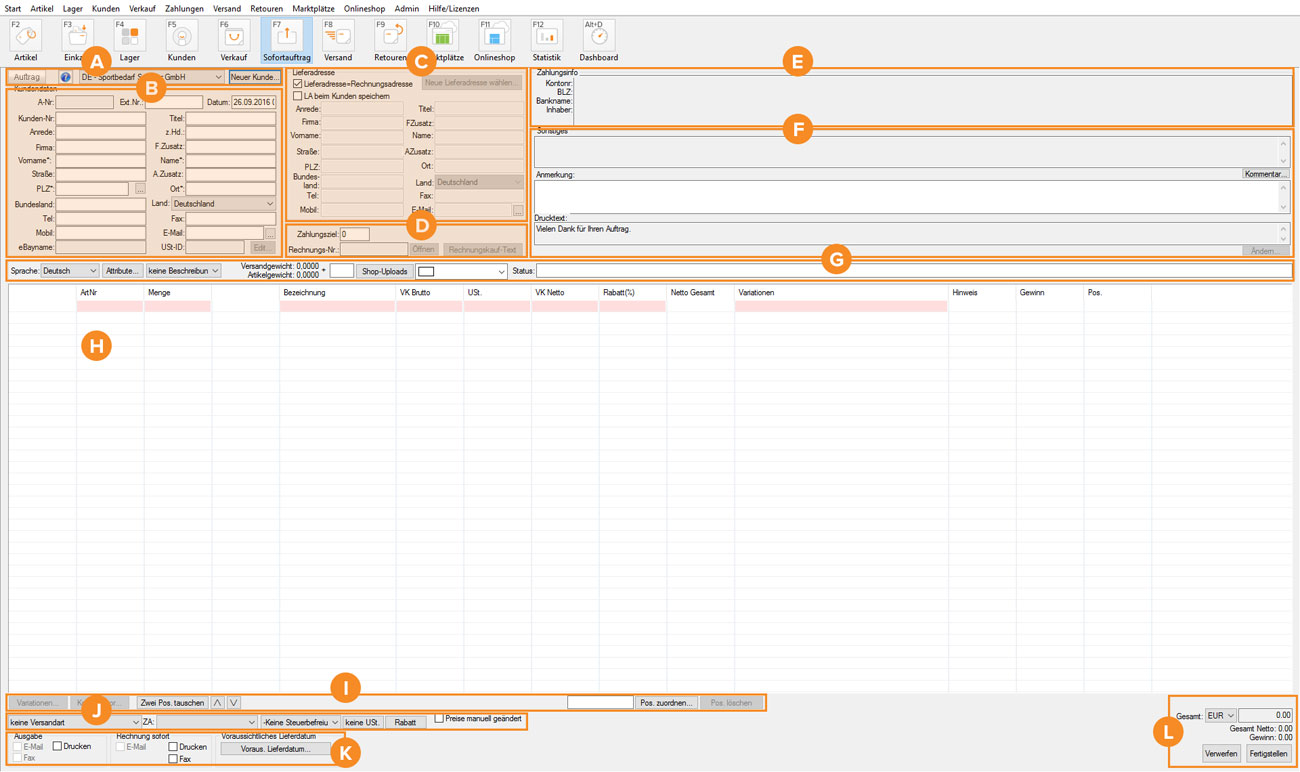
(1 – alternative) Create an immediate sales order
Alternatively, you can create an immediate sales order using the key combination CTRL+S. For existing customers, you can then enter the customer number directly and the appropriate data record will be pulled. Alternatively, you can also search for the customer from here via a dialog.
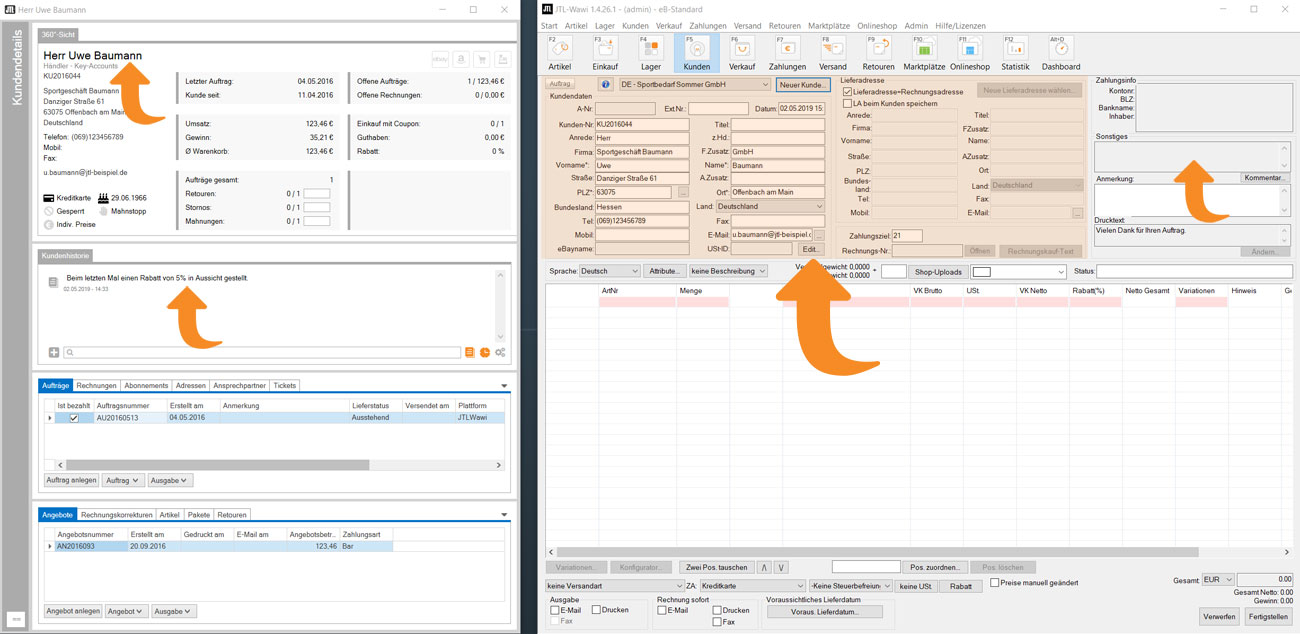
(2) Store customer information during the phone call
As soon as JTL-Wawi recognizes the customer, you can work in the undocked widget parallel to the main action of order acceptance. Often you just want to make a note of something that seems important during the call. Customer-related notes are possible in the widget – and you can store internal comments in the Miscellaneous field in the sales order. Standardized customer information, on the other hand, is entered and edited in the customer master data dialogue box. The window can be opened from both the sales order and the widget.
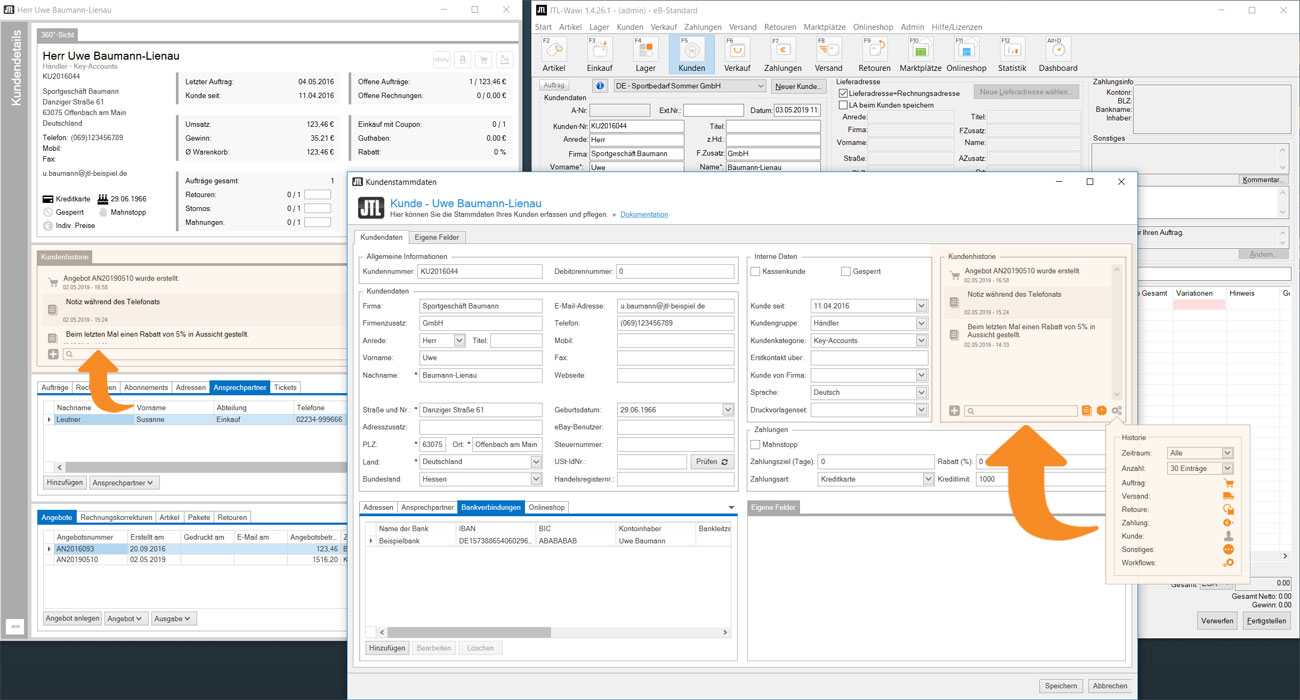
(3) Create notes & customize customer history
With the new customer management there is also a searchable customer history. You can create notes here at any time. However, the system generates most of the entries automatically so that all processes can be tracked seamlessly. You can define which information should be listed in the history and how many entries should be displayed, depending on the user.
To the JTL-Guide: Customer master data
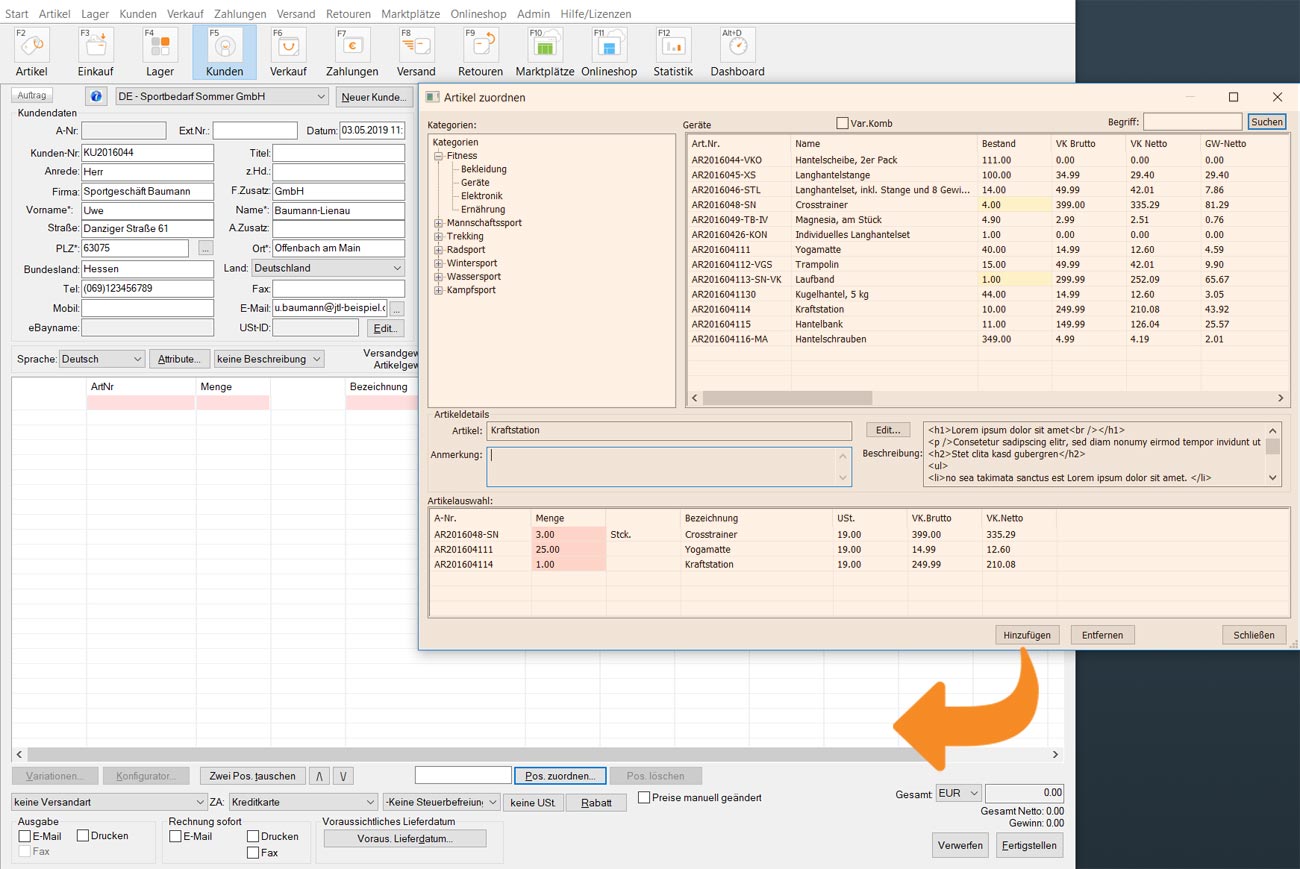
(4) Complete the order
During the consultation, you can add items to the sales order. You can also enter details such as the delivery address, expected delivery date or shipping and payment method.
(5) Add comments
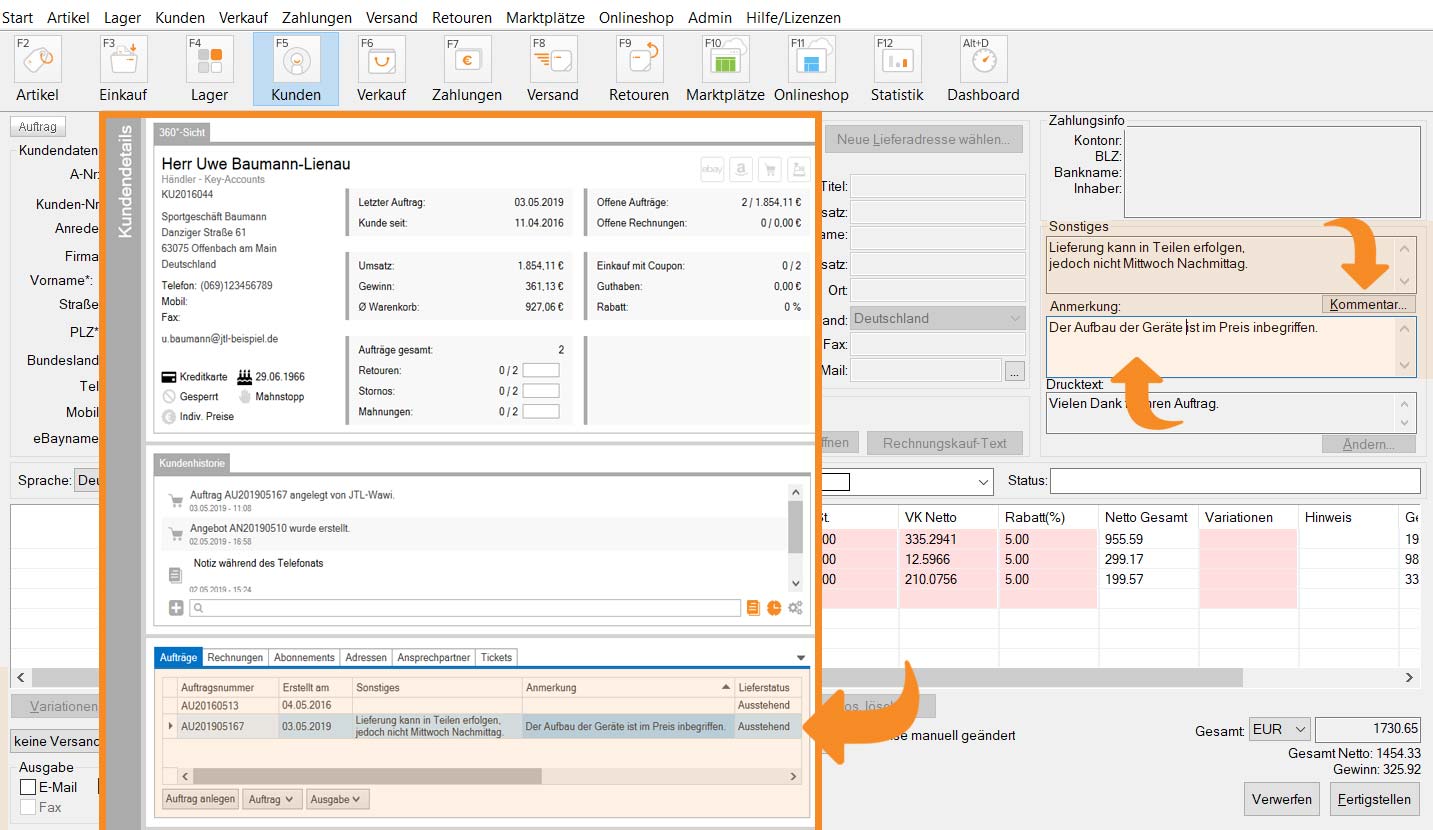
Special agreements can be recorded in the Comment field and output on the sales order. If you want to work in this way, you must add the comments in the order template as the variable Report.Comment. You can also display both comments and internal comments in the widget via the column settings.
Case 2: Interested party seeks advice
A potential new customer calls your sales department and wants advice. You want to take their order during the phone call. At the same time, you want to record individual facts about the customer that you hear during the consultation – a typical sales call.
JTL-Wawi does not contain a CRM. However, some CRM functionalities have been integrated with the new customer management. With a little creativity, you can also use our ERP in sales.

Leads & Opportunites in ERP?
The full functionality of the customer widget is only available to you if you have already created a customer data record. But where can you note down important facts from the conversation with a potential new customer? A paper notepad is always an option, of course. Or you can try something different: Placeholder customers!
Keep a quota of potential customers
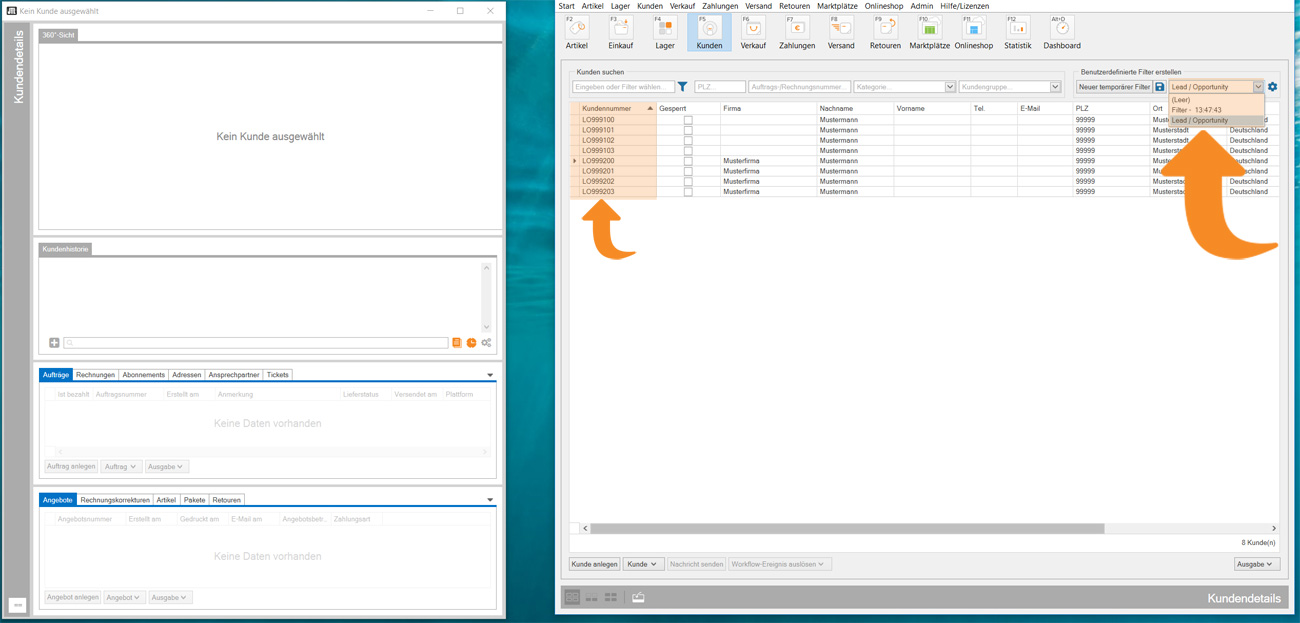
A creative workaround is “placeholder customers”: For example, you can create a contingent of dummy customers with a concise customer number using JTL-DataTransfer. You can also create a “Leads / Opportunity” filter for this.
During and after the consultation
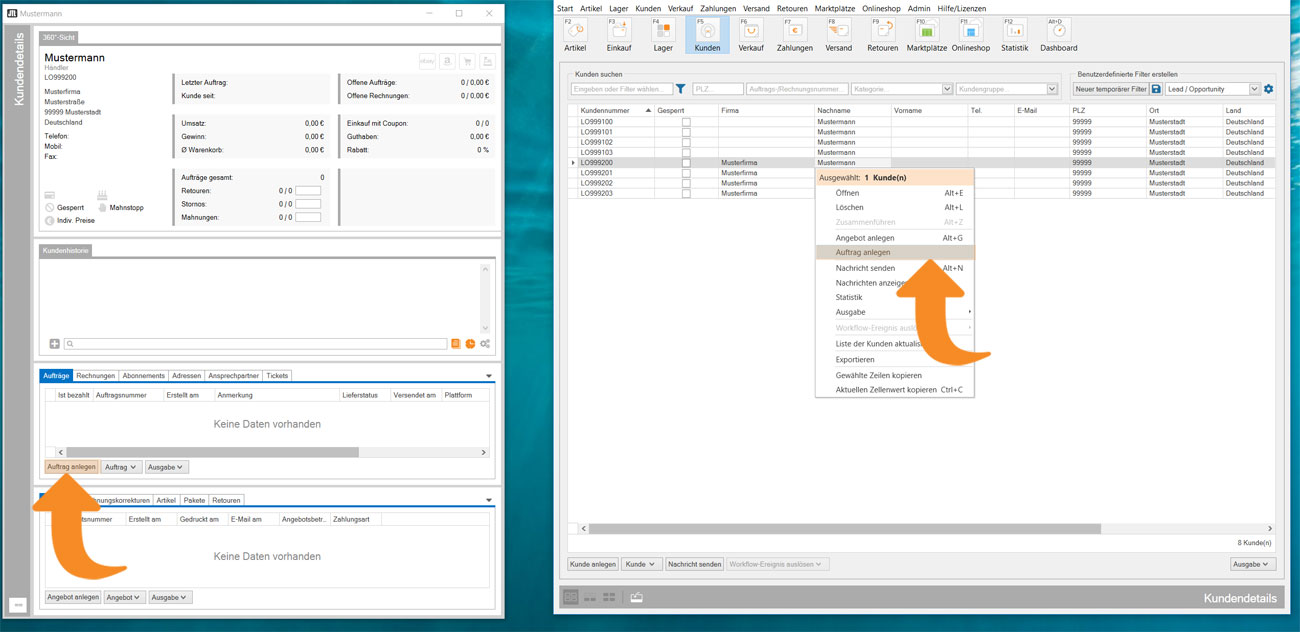
For a potential new customer, the sales employee simply selects a placeholder customer and overwrites their data. This allows them to concentrate on the phone call. If the prospect actually becomes a customer, the sales employee can then manually overwrite the Customer since and Customer number data fields if they wish.
Answer email questions about the product?
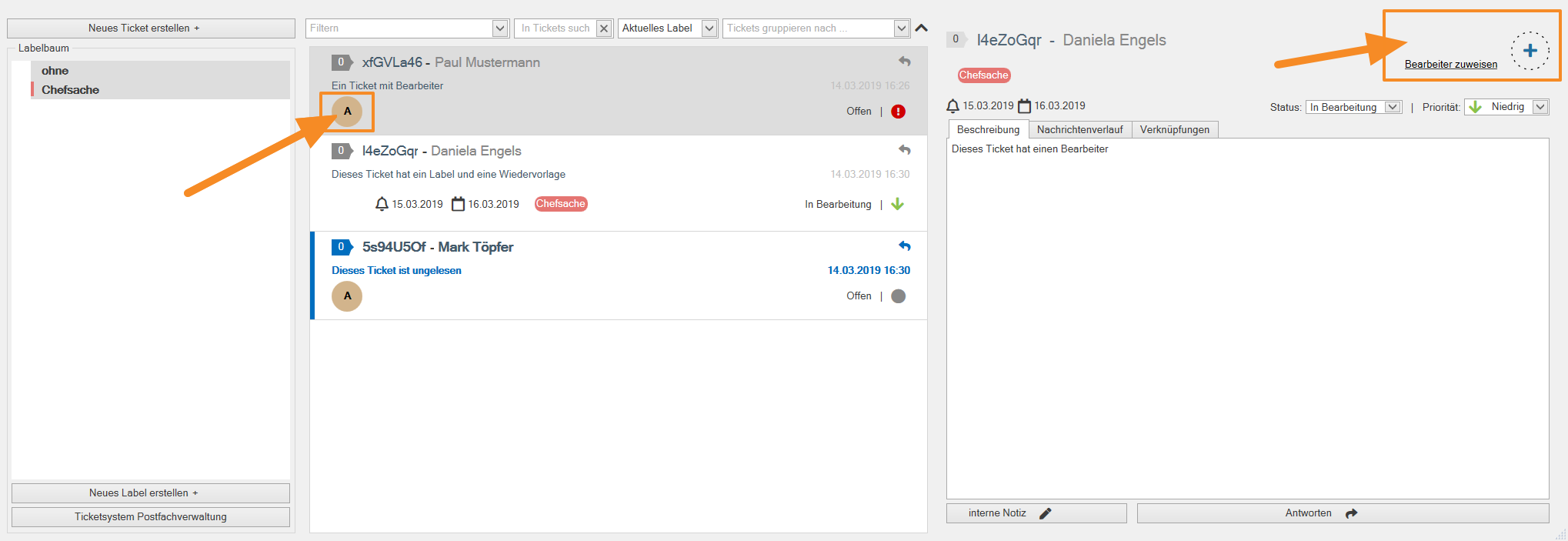
With JTL-Wawi 1.4 you cannot yet answer email inquiries. However, an inbox for our ERP is in the works. You can find out more about the planned ticket system in another blog post: Developer diary ticket system
The topic of “efficient new customer creation” and other wishes of JTL-Wawi users are already being taken into account in the current development. This is because our order module is currently undergoing a comprehensive overhaul. Insights into the new order management (here: milestone 4) including feedback to our product owner can be found in the JTL forum:
Case 3: Send listing to contact person
You have created a requested listing or an expected delivery has arrived. You want to inform your customer about the event with just a few clicks. The customer has asked you to pass the information on to a specific person in charge.
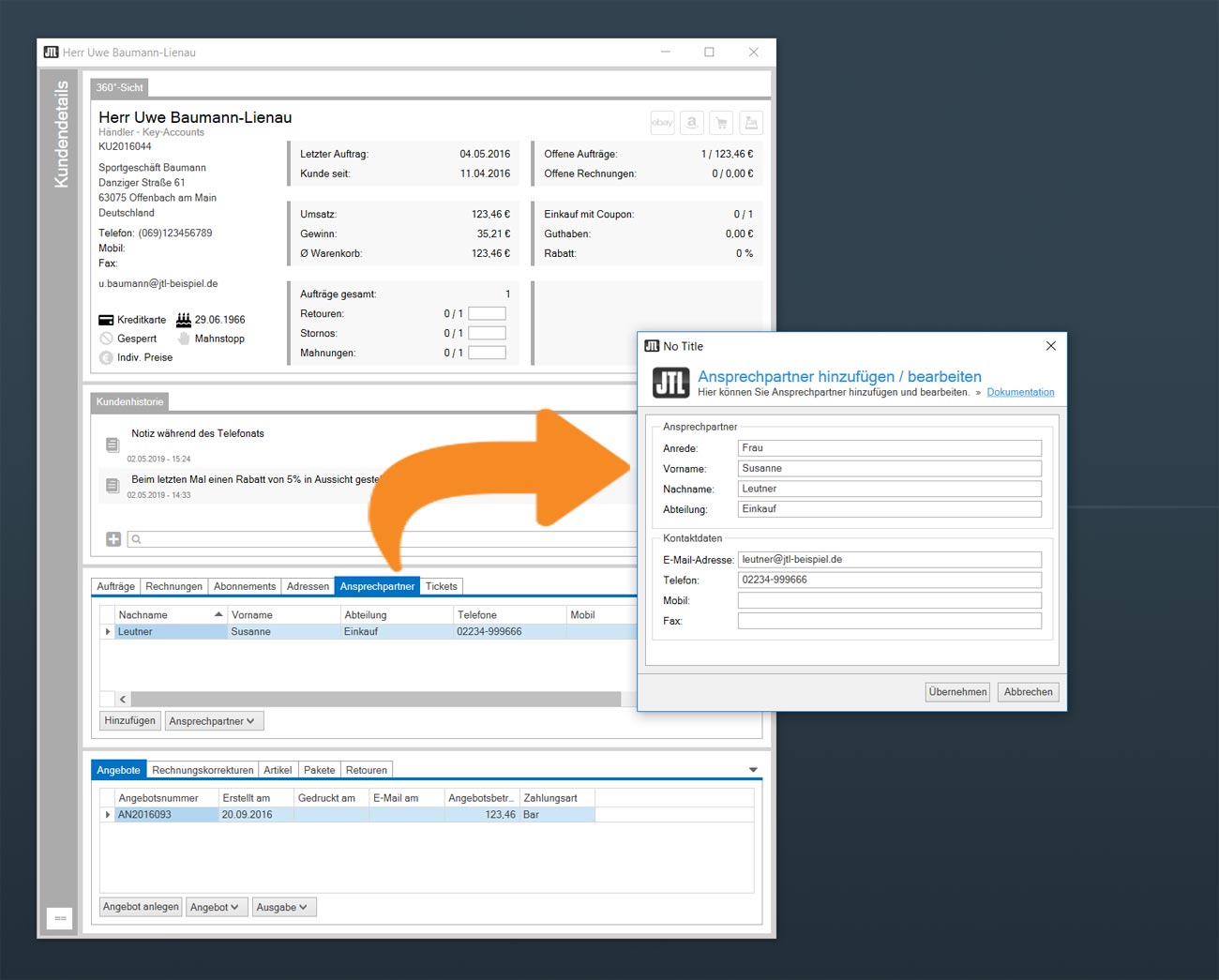
(1) Store contact persons
Business customers often have contact persons for different matters. You can therefore store several contact persons with their email and telephone numbers in the customer master data .
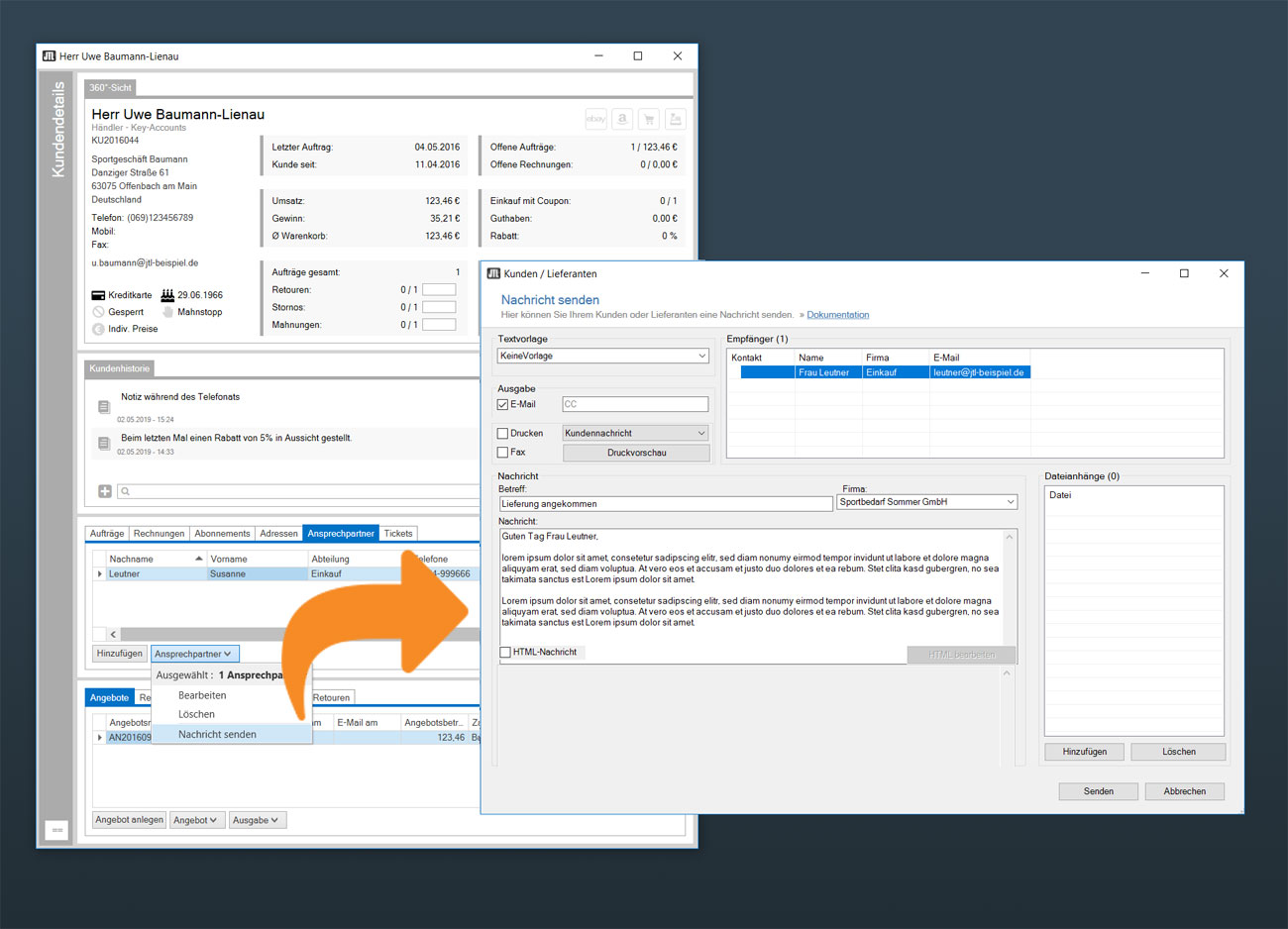
(2) Send message
You can use the undockable customer widget to send a message to contact persons with just a few clicks. As a prerequisite for sending messages, the email settings in JTL-Wawi must be set up correctly.
To the JTL-Guide: Configuring email
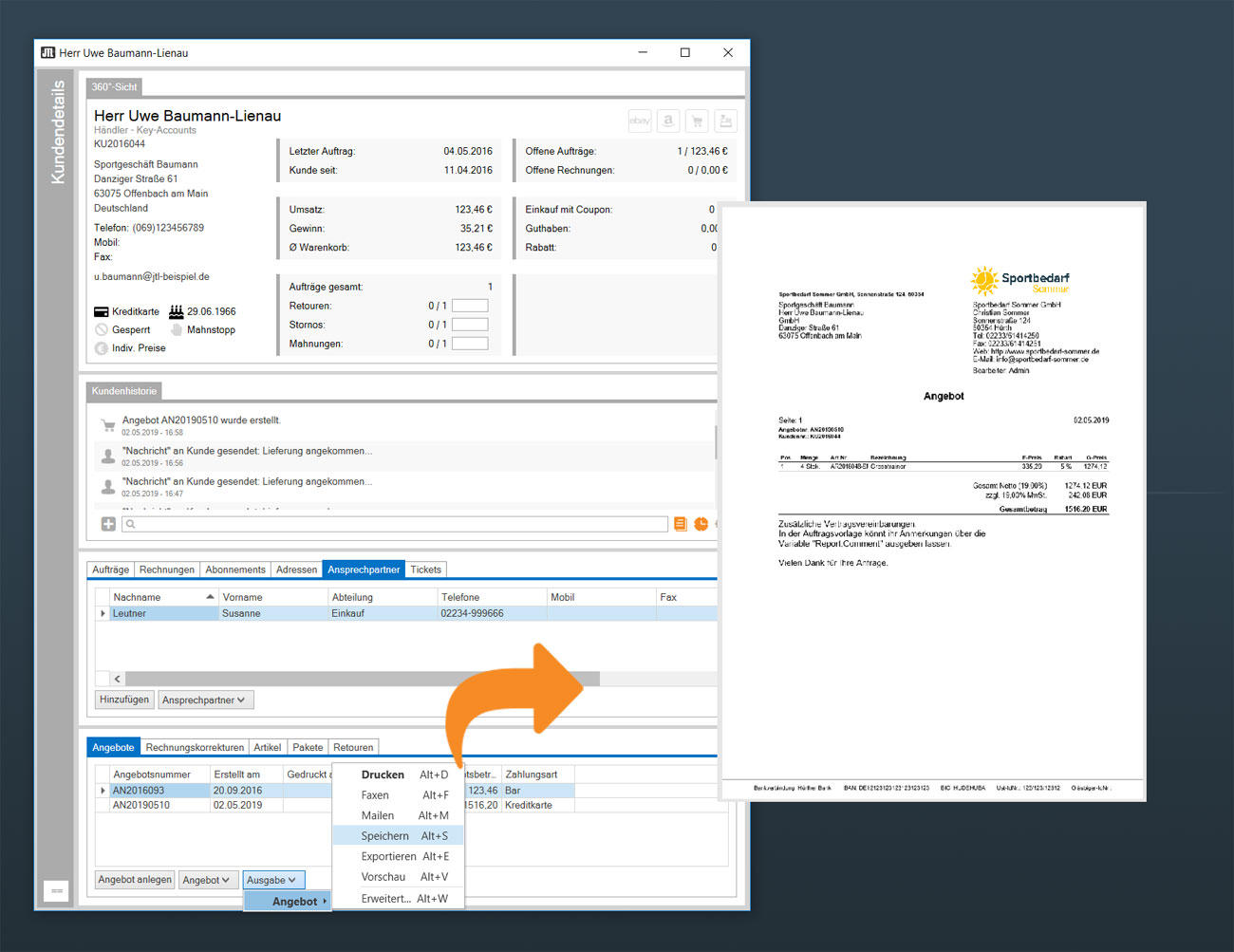
(3) Attach file / listing
You can send a listing directly with one click. However, the customer’s stored main contact is selected by default. To email a contact person, save the listing temporarily and then simply attach it to the message as a PDF.
Case 4: Negotiate discounts and adjust prices
For larger order quantities in the B2B sector, renegotiating prices is part of everyday life. JTL-Wawi offers you several options here: An item-related price adjustment directly in the sales order, a global discount on the entire range in the customer master data or the storage of customer-specific prices per item, which then also apply to future orders or until called off.
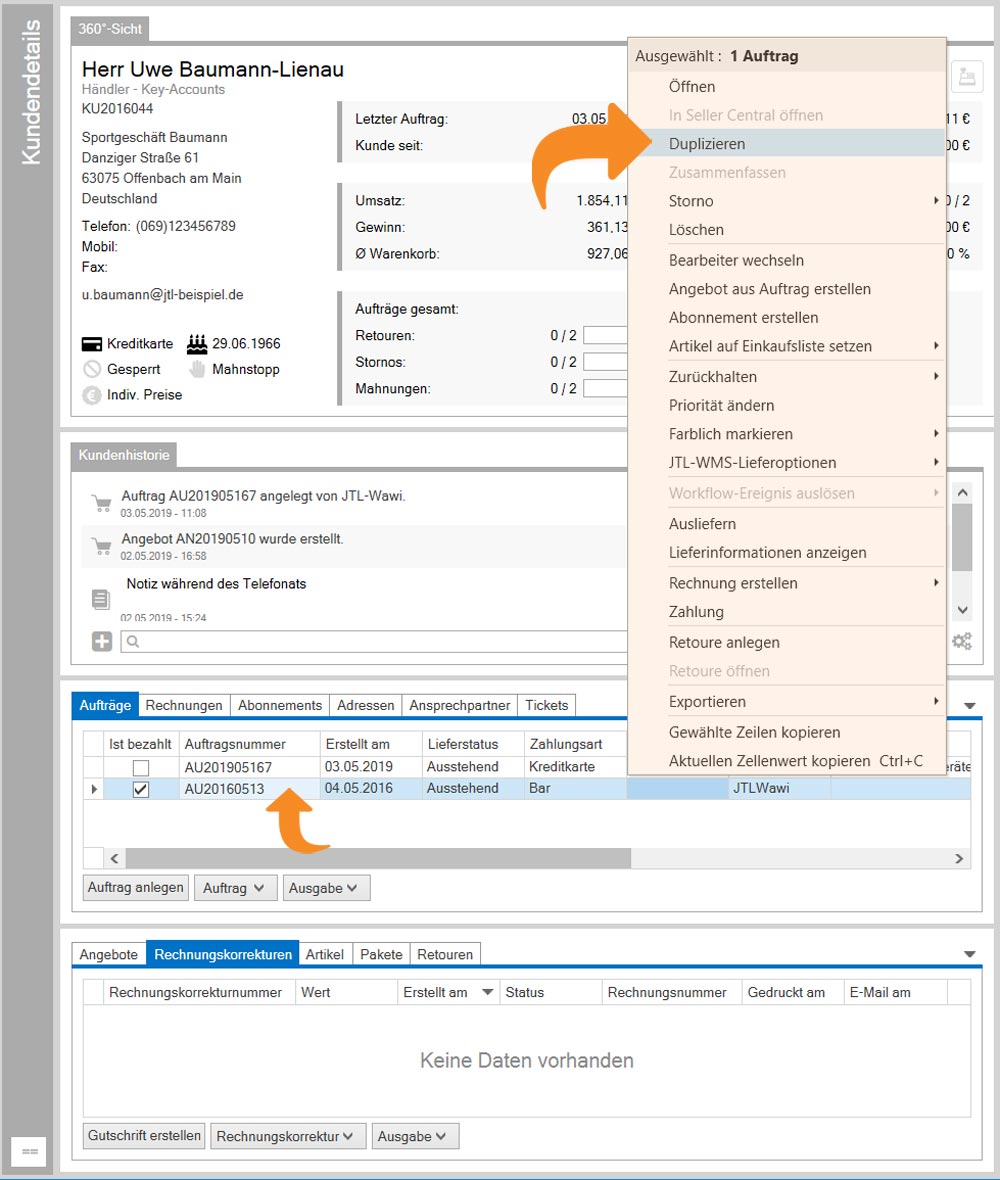
Start: Create or copy order
With JTL-Wawi 1.4 you can create new orders directly from the customer widget or copy a previous order. You can also create or copy a listing in the same way. In contrast to a sales order, no item stock is reserved for a listing.
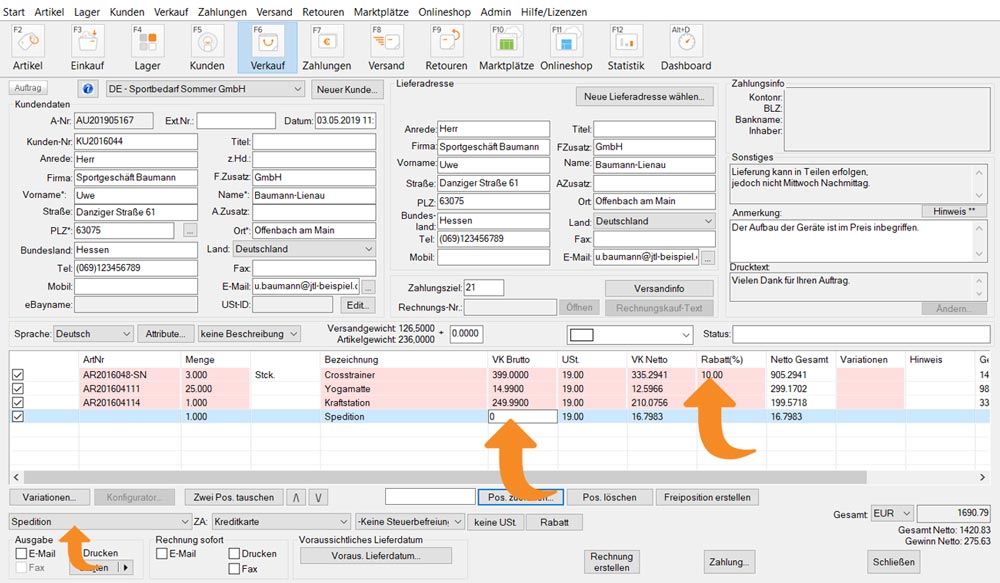
Discounts in the sales order or on items
In order processing, you can then apply discounts, reduce shipping costs or set an individual price for this specific customer and item with just a few clicks. As long as no invoice has been generated, you can still adjust sales orders that have already been created.
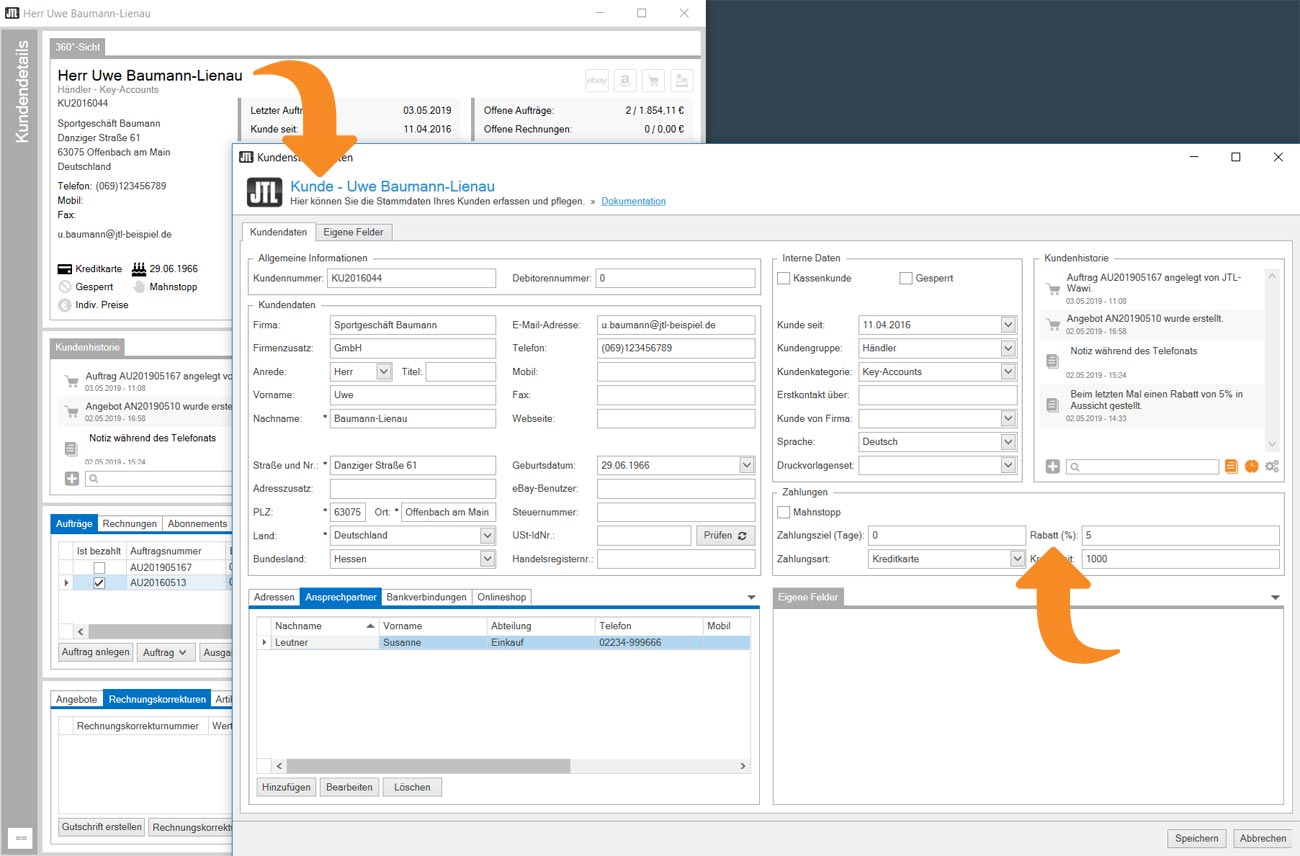
Price reduction through global discount
Alternatively, you can enter a global discount (%) in the customer master data. The discount then applies to the entire product range as a percentage. This discount only applies if the customer does not already have a higher discount on the range or an individual category – for example, by belonging to a customer group.
Shipping, complaints and refunds
Online retailers also have to deal with customer inquiries during the shipping and delivery of their parcels. Subsequent corrections to the delivery address are just as common as refunds for the delivery of damaged goods.
Case 5: Adjust delivery address retrospectively
When an order confirmation is sent, customers often discover that they have entered an incorrect delivery address. In the best case scenario, the customer notices their error promptly and changes their settings independently in the online store or marketplace. If an adjustment is no longer possible there due to advanced order processing, the customer may send us the correct address by email or telephone.
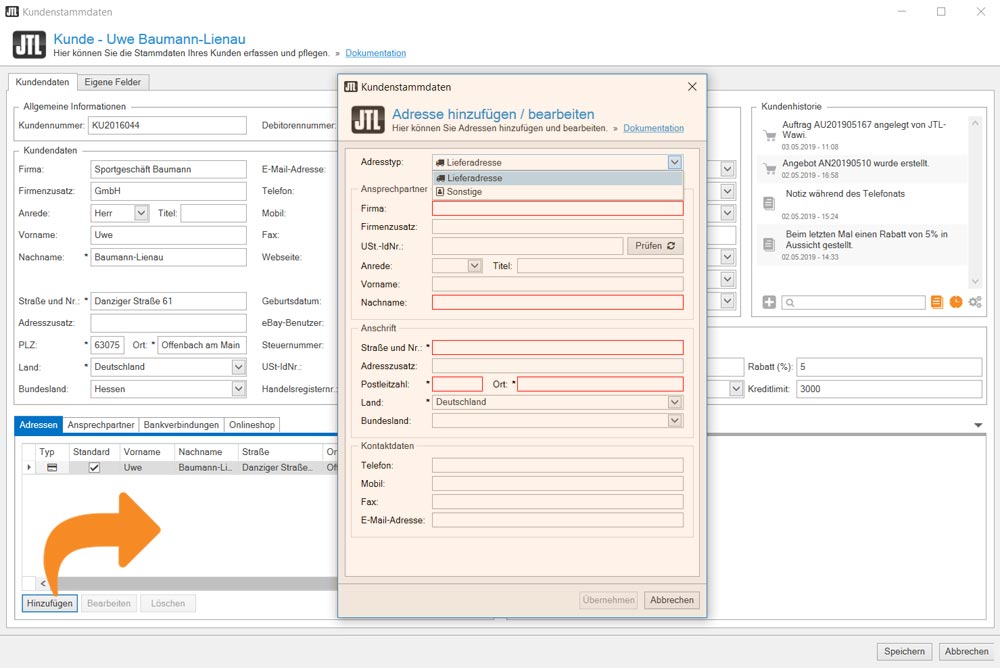
Enter corrected address
You can enter additional delivery addresses for the customer or update an existing address with just a few clicks. You can then update the data directly in your JTL-Shop in the Online Shops tab of the widget.
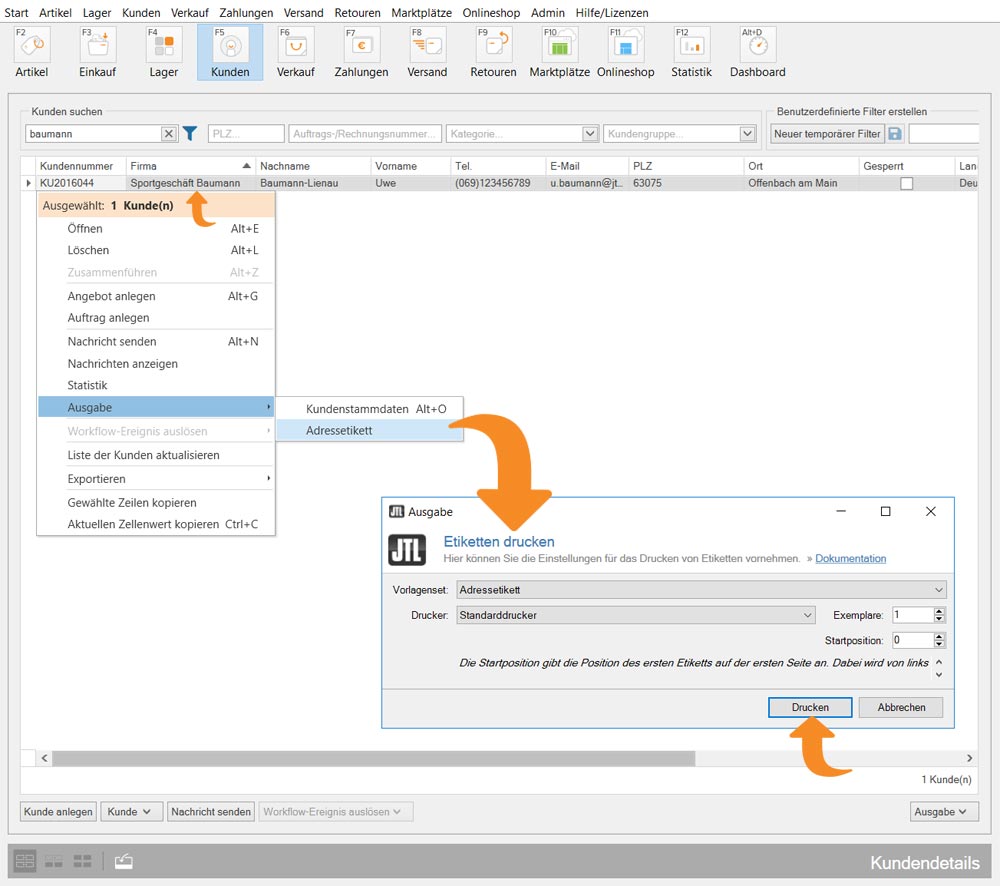
Reprint address label
Unfortunately, your address changes in the customer master data can no longer have an effect if you have already transferred the order to a picklist. In the warehouse, during the regular packing process, the label will be printed with the old address. However, you can print out the new address label directly in the office and then go to the warehouse, pick out the parcel and paste the new label over the address data on the shipping label.
Case 6: Refunds issued
A customer contacts you because the goods have been delivered to them damaged or they have found the product at a much cheaper price from a competitor. In principle, they would like to keep the item, but ask for a price reduction or a refund. In JTL-Wawi, “credit notes” are possible in three variants: as invoice corrections (cancellation invoice), as a credit note or as a credit in the online shop (JTL-Shop).
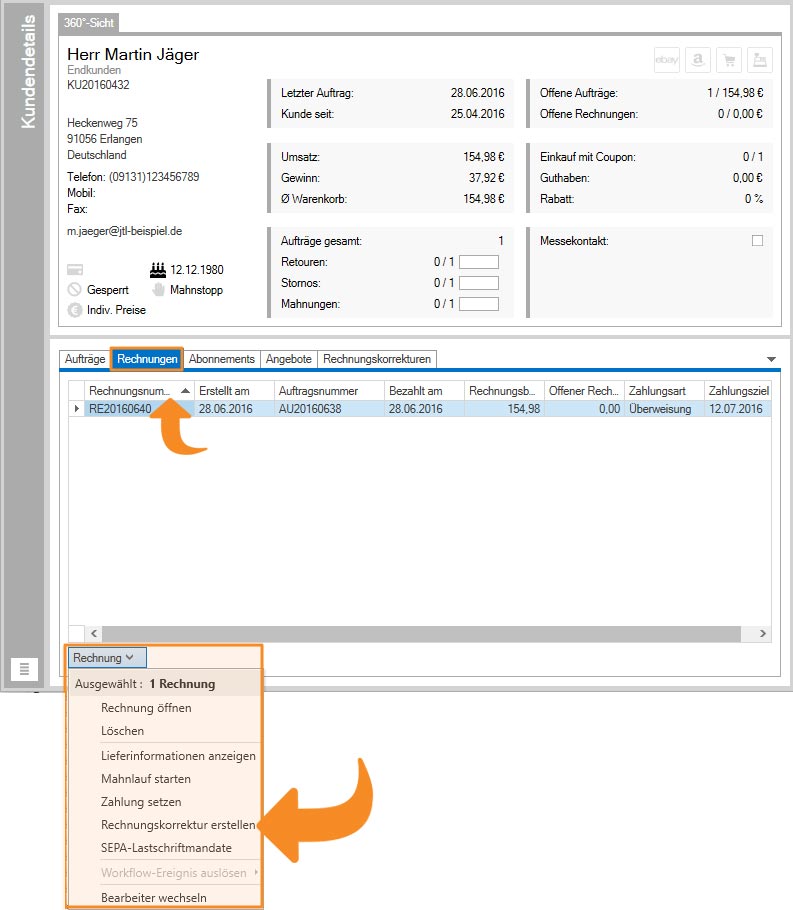
Make an invoice correction
You can find all of the customer’s invoices in the undockable widget. Via the Context menu you can create an invoice correction and, for example, reduce the affected item by the negotiated amount. Invoice corrections always relate to a specific invoice and are transferred to the tax consultant together with all invoices and taken into account in the annual balance sheet.
To the JTL-Guide: Correct invoice
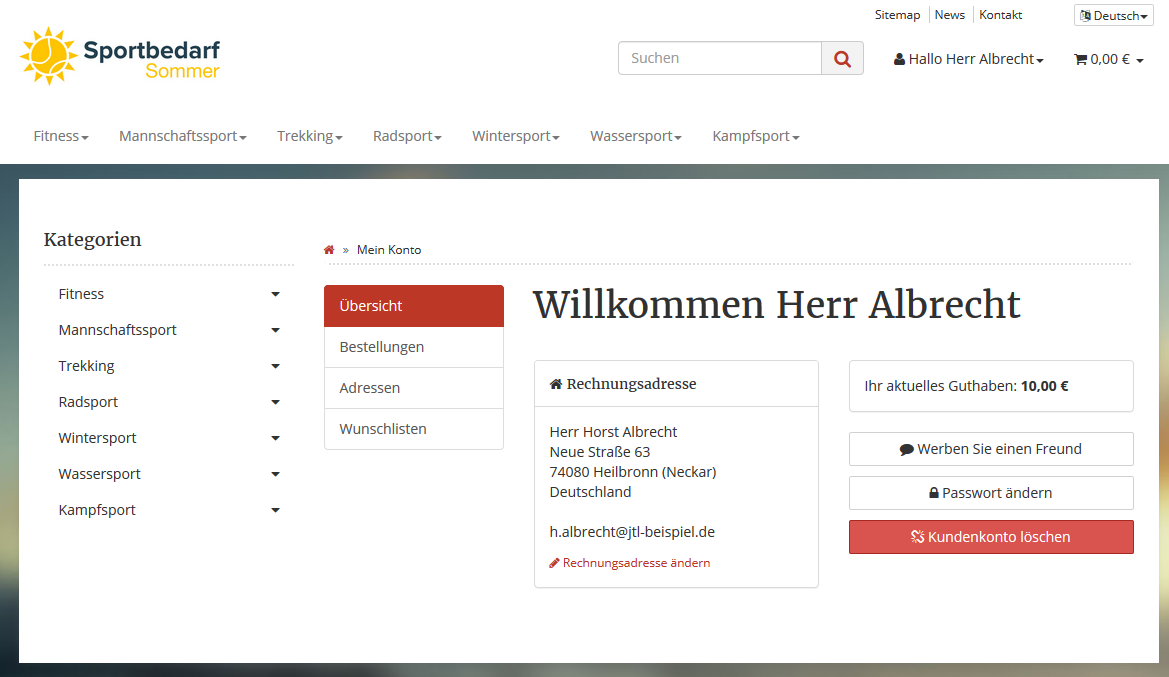
Assign credit for online shop
If you work with JTL-Shop as your shop system and the customer has an account there, you can also assign credit via the customer master data. The amount will appear in their online store account with the next store synchronization.
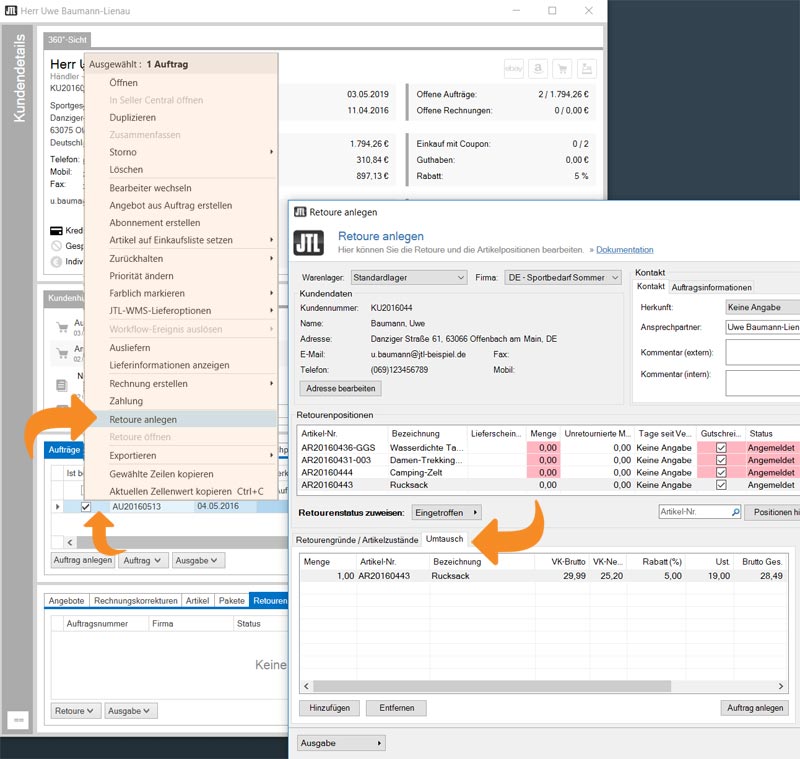
Create exchange order
However, if the customer wants to return the goods, you can create a return with an exchange order. You can initiate the process directly in the widget > tab Sales orders.
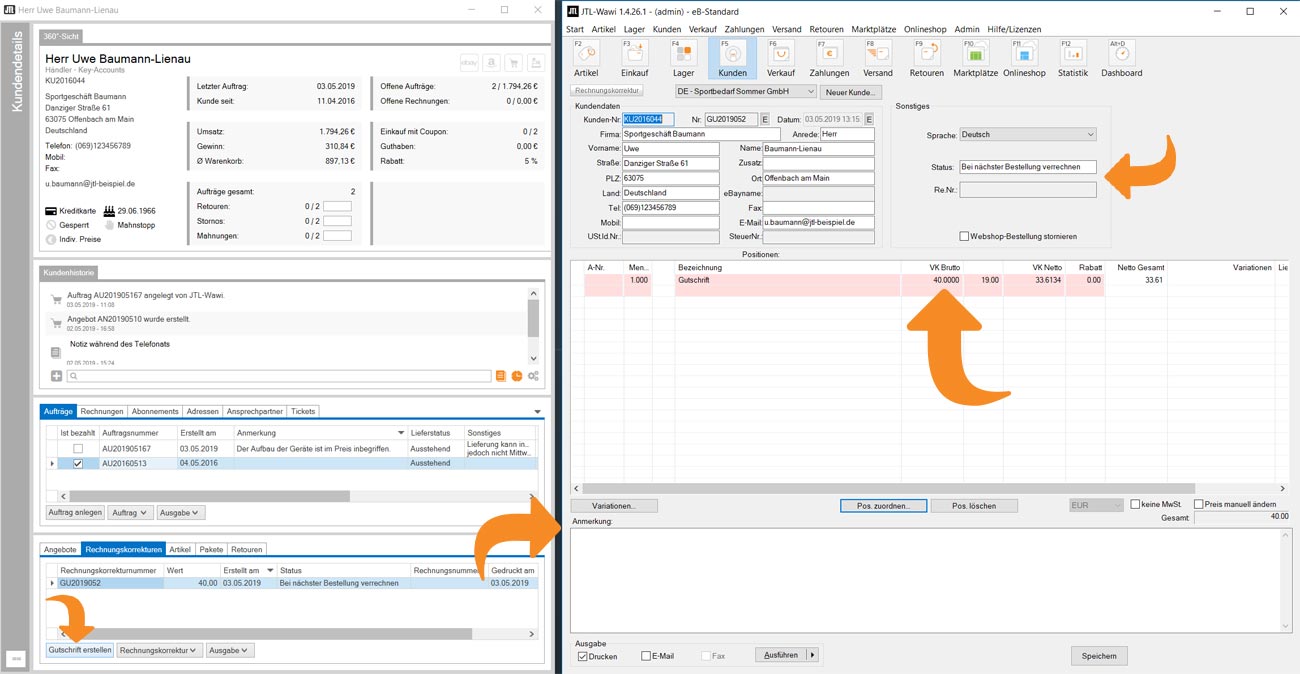
Create refund
If you would like to credit the customer an amount without an invoice reference, you can use the JTL-Wawi refund function. Refunds have the same formal requirements as an invoice, whereby the word refund must appear on the document. Historically, JTL-Wawi uses the same standard template for invoice corrections and refunds. If you want to use refunds, you have to add the word credit note as a case-dependent variable in the template:
Display conditions:
If the object does not contain an invoice number, replace the word “invoice correction” with “refund”.
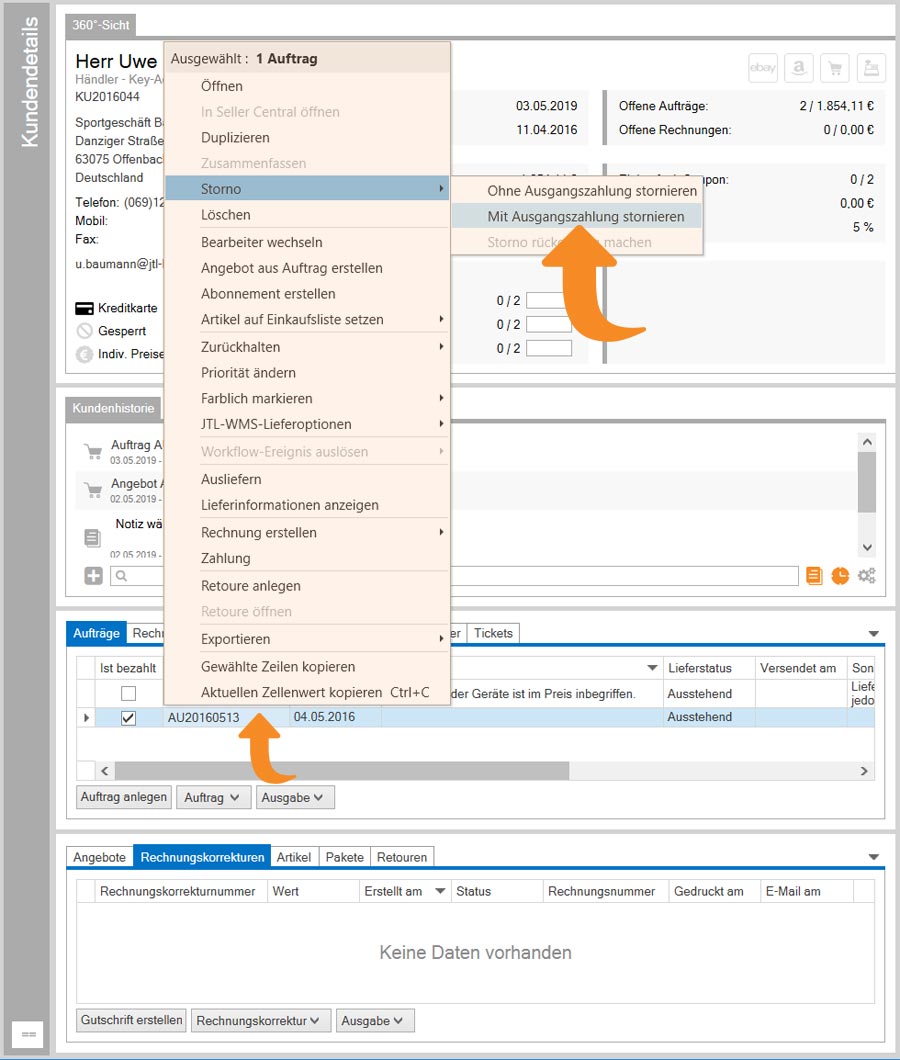
Instruct repayment
If you use the JTL payment module and the incoming payment was processed via the module, you can instruct a repayment directly from the customer master data. You can find out more about the payment module here:
To the JTL-Guide: Send payment
To the JTL-Store: Monthly subscription payment module
Video
You prefer to watch moving images? No problem. Our video tutorial also introduces you to customer management: