We are already hard at work fine-tuning JTL-Wawi 1.6. In addition to many new features for our ERP, the release will bring numerous new features for our JTL-WMS customers in particular. We have selected six of the many highlights of the new version, which we would like to present to you in a two-part developer diary.
1. new printer management
Only three printers for two dozen templates in three variants each for B2B, B2C and internal processes – far too few for a well-structured organization and customer communication. Anyone who needed different printers for different documents could only achieve their goal with complicated workarounds. For example, delivery bills with removable stickers and invoices on environmentally friendly recycled paper shared a printer tray. Working around these problems was very complex and sometimes impossible.
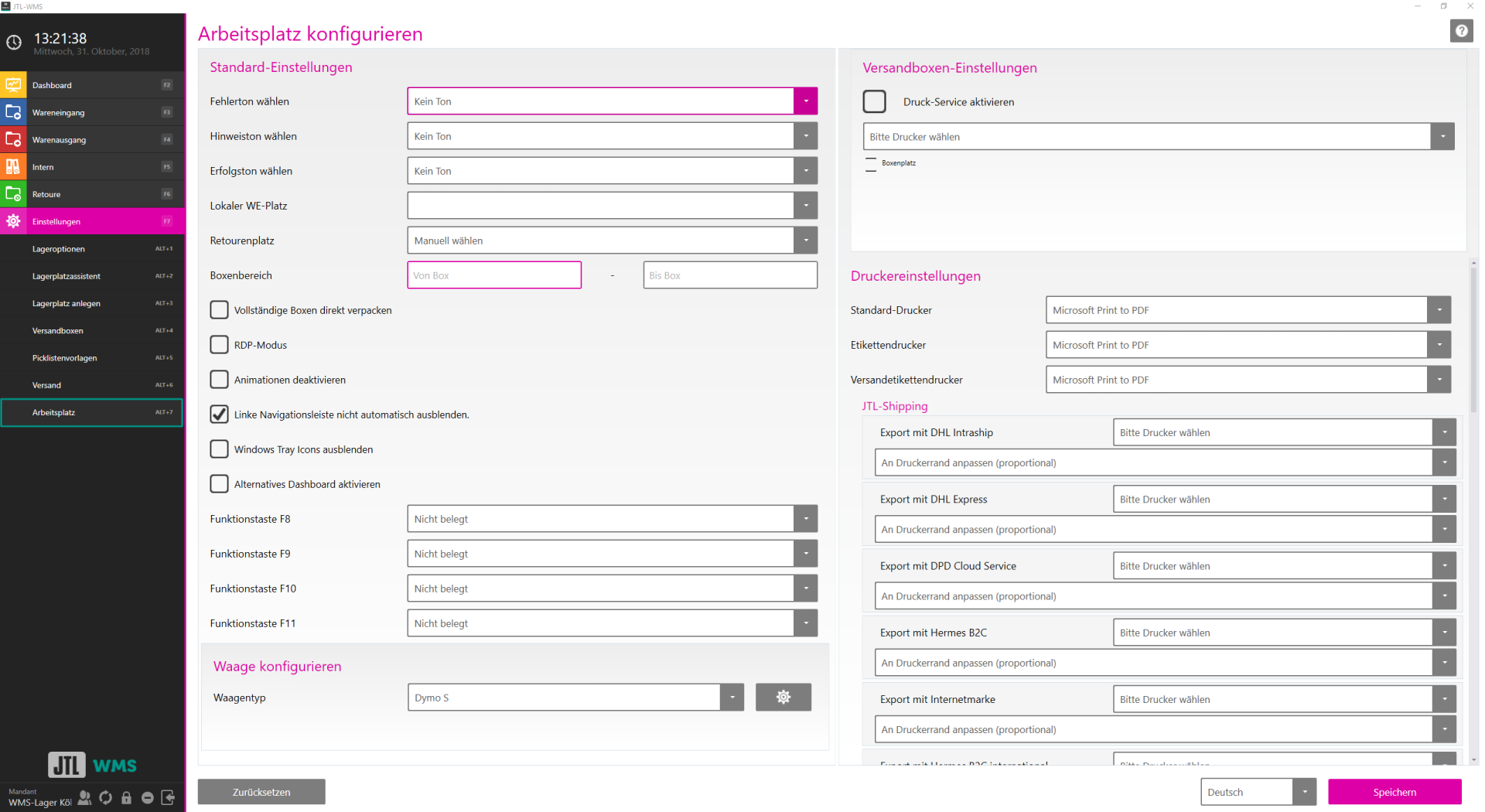
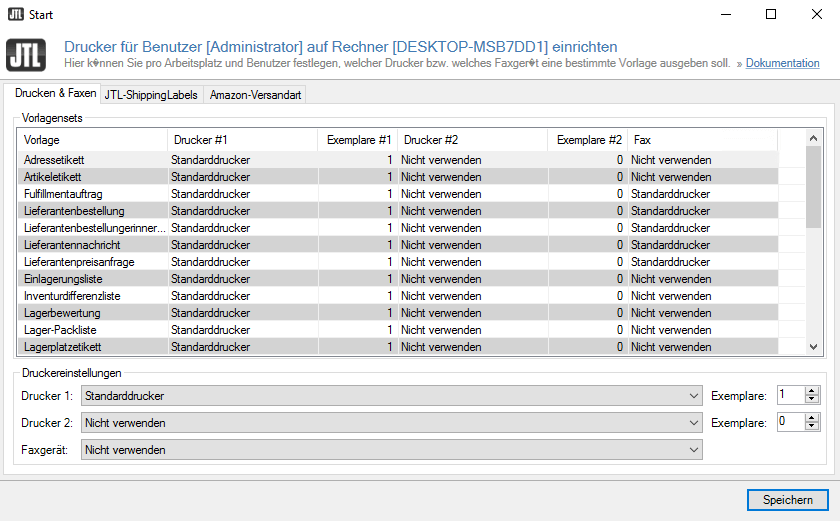
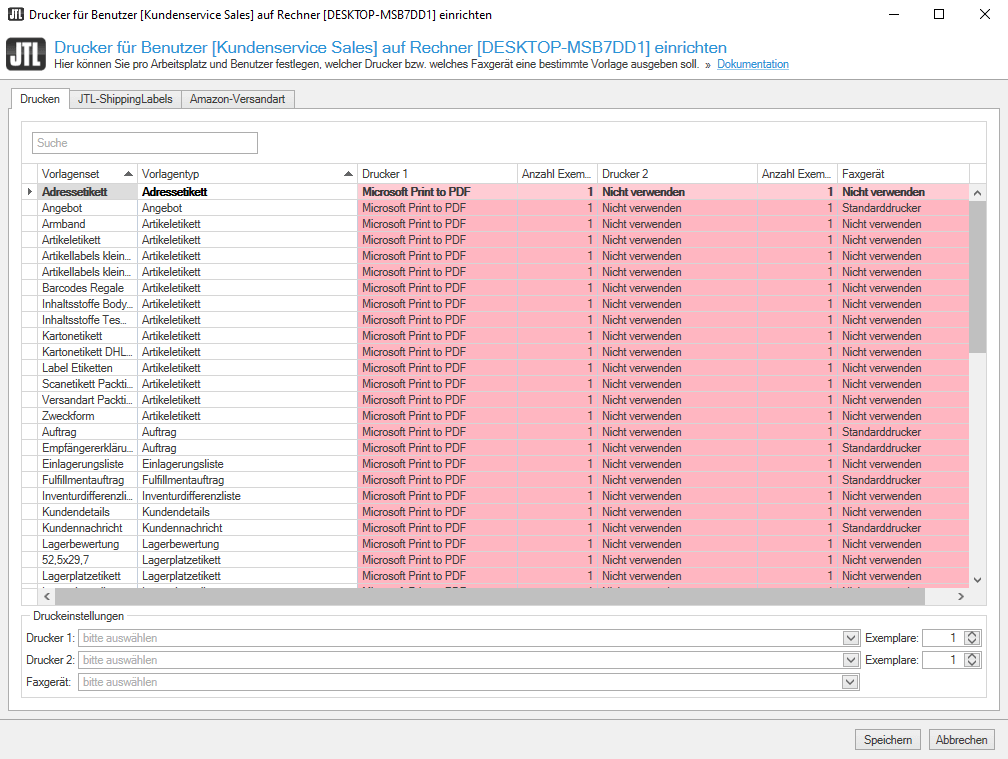
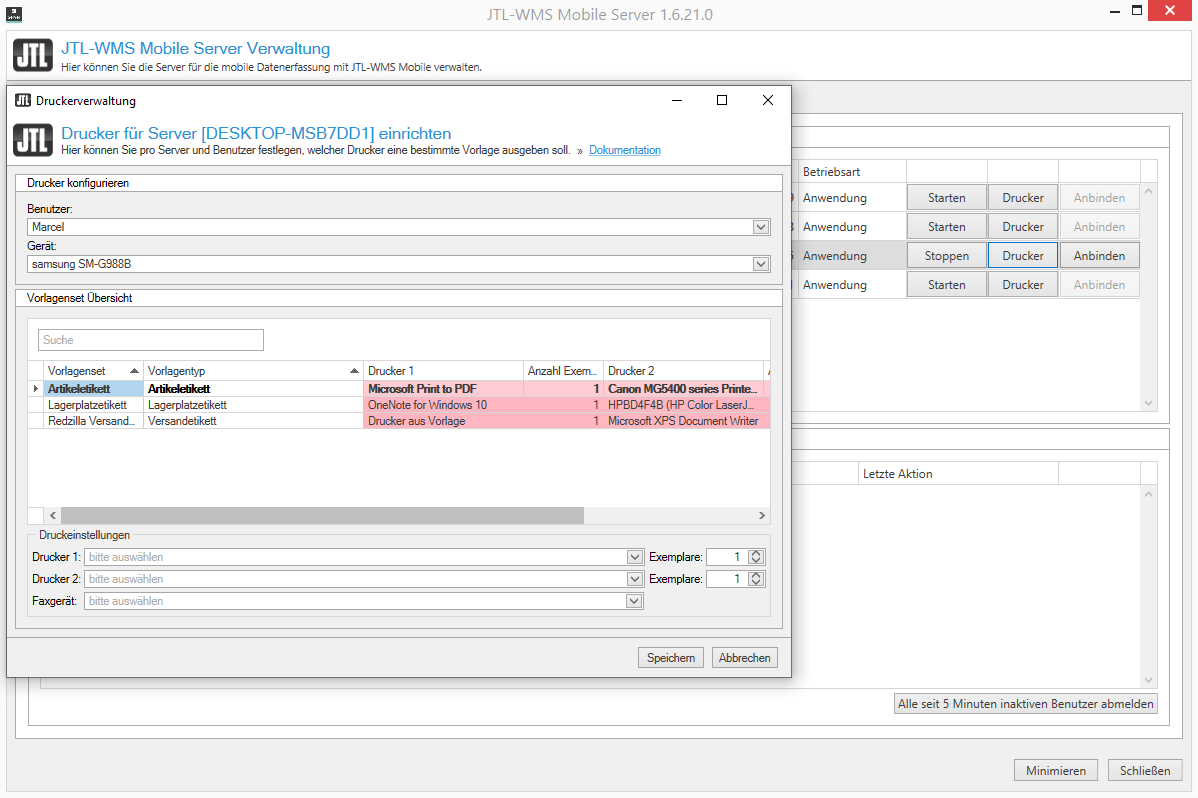
We have completely rebuilt this area for you so that you now have all the flexibility and freedom of the familiar printer management from JTL-Wawi at every workstation in the warehouse. You can store a separate printer for each template set and each template type. And that’s not all: you can print item and storage bin labels directly via JTL-WMS Mobile and even assign different printers to each device or user. We have integrated our own printer management into the JTL-WMS Mobile server for this purpose.
For example, many of you have different requirements for different customers or customer groups and therefore different invoice or delivery note templates. While you use a delivery note template with a returns label for one customer, you don’t need a returns label for another customer, but you do need the delivery bill with customs declaration in triplicate.
From JTL-Wawi 1.6 you can also set different printers in the warehouse management. Multiple trays for different templates are also possible. For example, you may want to use inexpensive economy paper when selling via a third-party platform, but prefer glossy paper for your invoices to business customers and business partners. Your application options are very diverse – we recognize this and let JTL-WMS grow with your requirements.
As before, you go to your “Workplace” in JTL-WMS or JTL-Packing Bench+, open the “Printer management” and assign the appropriate printer to your desired templates. The same as for JTL-Wawi.
Due to the far-reaching change, you must make these settings once for each print template and JTL-ShippingLabels setup per workstation in the warehouse after an update. In the warehouse, the printers are saved per workstation and not per user, because the computers there are often used alternately by many users.
To print directly in the warehouse via cell phone, tablet or laptop, you must first open and configure your JTL-WMS Mobile Server so that you can establish a connection between the database and your mobile devices.
As soon as you have connected each desired mobile device to your database at least once via JTL-WMS Mobile, it will be available in the printer management of JTL-WMS Mobile Server. By clicking on the “Printer” button, you can now select printers for any number of users and devices. Users can share one printer per device or be assigned their own printer, which works with every device.
Until now, there were two ways to save the printers of JTL-WMS and JTL-Packing Bench+. There was the “RDP mode”, which saved the printer configuration in the Windows registry. This was especially necessary in combination with cloud hosting and working environments via remote desktop in order to maintain a certain independence from the Windows user account. As a second option, we were able to save the printers without RDP mode, in which case the setup was stored in an XML file on the system hard disk. However, this had the disadvantage that JTL-WMS or JTL-Packing Bench+ had access problems to these configuration files, especially in complex corporate networks, for example if the Windows user was a member of an Active Directory and did not have access rights to this file. So some of you often had to reconfigure the printers.
From JTL-Wawi 1.6, the printers are saved per template and much more thoroughly directly in the JTL database and can therefore be saved and read more reliably. In addition, we have dispensed with suffixes such as “(connected 2)” or “(connected 3)”, which Windows often appended to the printer name, which meant that a printer could no longer be found in the old setup if you logged into JTL-WMS again via JTL cloud hosting.
2. capture GS1-128 bar codes
Until now, JTL-WMS did not support the scanning and reading of GS1-128 bar codes, which is why you sometimes had to laboriously stick additional labels on items or container units for the SKU, EAN, BBD or batch.
As of JTL-Wawi 1.6, you can capture numerous data supplied via this barcode type in JTL-WMS and JTL-Packing Bench+ with just one scan, thus avoiding additional scans and skipping unnecessary dialogs altogether. This means you have information such as down payment, container unit, batch, serial number and best-before date at a glance.
The many different pop-ups used to increase the potential for errors and take up a considerable amount of time. Anyone could make a typo or enter the wrong information, which meant that an item was lost and only found again during the inventory. Or you had to laboriously correct the entered data. Under “Workplace” in JTL-WMS, we also offer you a check function to enter a GS1-128 bar code and display the information it contains.
Important: If you want to use GS1-128 bar codes, you must ensure that your scanners support and can read this bar code type.
For example, many of you have different requirements for different customers or customer groups and therefore different invoice or delivery note templates. While you use a delivery note template with a returns label for one customer, you don’t need a returns label for another customer, but you do need the delivery bill with customs declaration in triplicate.
If you now have a handheld scanner or a built-in scanner that supports the GS1-128 bar code, you can simply scan it in any input field where you previously scanned the SKU, for example.
Instead of sending this bar code directly on to article recognition, the transmitted character string now runs through a special function that breaks it down into its individual components.
For example, the string 01145601469264957003250313154510200388 contains several pieces of information at once that can be recognized by unique interpreters. In this string, we find the following data identifiers and the corresponding content:
- GS1-13 / EAN13: 14560146926495
- (7003) Expiry date with time: 13.03.2025
- (10) Batch: 200388
JTL-Wawi and thus also JTL-WMS, which do not yet support the expiry date, interpret the expiry date identically to the data identifier (15) best-before date. We also do not currently support the time in an expiry or best-before date. The following website provides a detailed overview of all data identifiers: https://www.etikettenwissen.de/wiki/Datenbezeichner
Currently, JTL-Wawi can only evaluate the bar codes. In the future, we would like to print the labels for our ERP system ourselves, for example in “Goods receipt”. Although this can theoretically already be mapped with JTL-Wawi, the process is very complicated. To do this, it is necessary to compile the content of the labels with many variables and possibly additional SQL queries. In the long term, we therefore want to allow you to print these GS1-128 bar codes in all relevant places and support more of the fields that the GS1-128 bar code can store.
We have certainly noticed the increasing requirement for batch and best before date traceability, especially in the medical and food industries, and are already reviewing resources to provide you with appropriate solutions as soon as possible. These topics and the requirements for these bar codes and labels are also a great desire in the current development of JTL-Plan&Produce, which is why you will probably not have to wait too long for the availability of GS1-128 directly from JTL-WMS.

3. identical sales orders - mass delivery
The third feature highlight is the new “bulk delivery” for JTL-WMS: The new shipping process will be called “Identical orders” and can now be tested and booked by JTL-Wawi 1.6 pilot customers in the JTL-Customer Centre.
Up to and including version 1.5, it is not yet possible to deliver large quantities of identical sales orders directly one after the other via JTL-WMS. You have to confirm each sales order at least once and then wait for the appropriate shipping label and print the delivery bills or invoices individually. This means a considerable amount of time for you.
The new feature is particularly useful for customers among you who, for example, send bundles with several items and sell them in large quantities. “Fast-moving items”, i.e. assortment items with a high turnover rate, are also ideal for this. It is important that the sales orders have exactly the same item items with the same quantity. You can then pack your parcels “like on an assembly line” without any annoying intermediate steps.
It is also possible to “pre-pack” identical sales orders again and again. For example, if you are selling fan packages with 20 items for the upcoming European Football Championship 2021, you can pre-pack these sets in hundreds and stack them on pallets. These sets are often sold via platforms without any additional items, meaning that absolutely identical sales orders are created thousands of times over.
You can easily purchase the license for the Identical sales orders in the Customer Center and test them extensively in advance, just like all other processes.
As usual, we also provide extended test or developer licenses for JTL service partners so that you can try out the process yourself and thus provide our joint customers with the best possible advice.
First create a new picklist template for the “Identical sales orders” process and configure it as you are already used to from EazyShipping, for example.
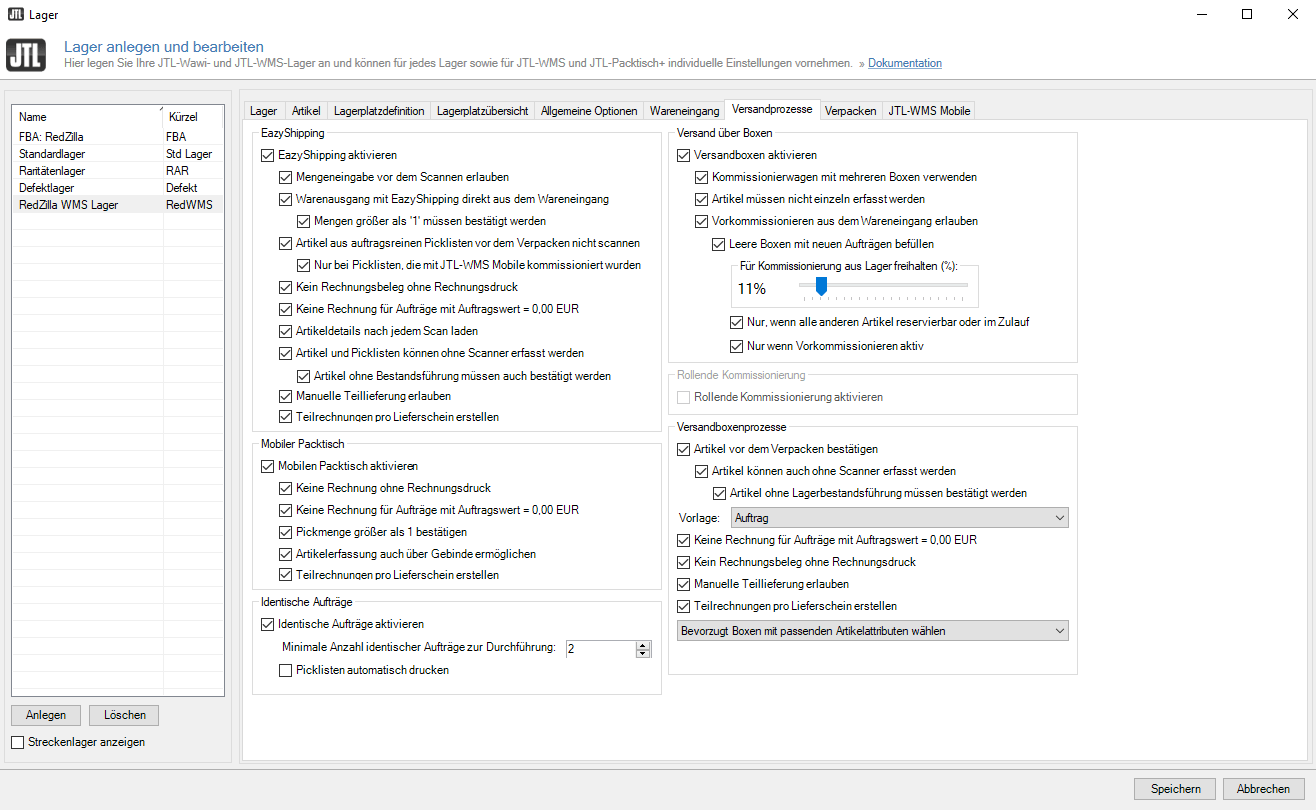
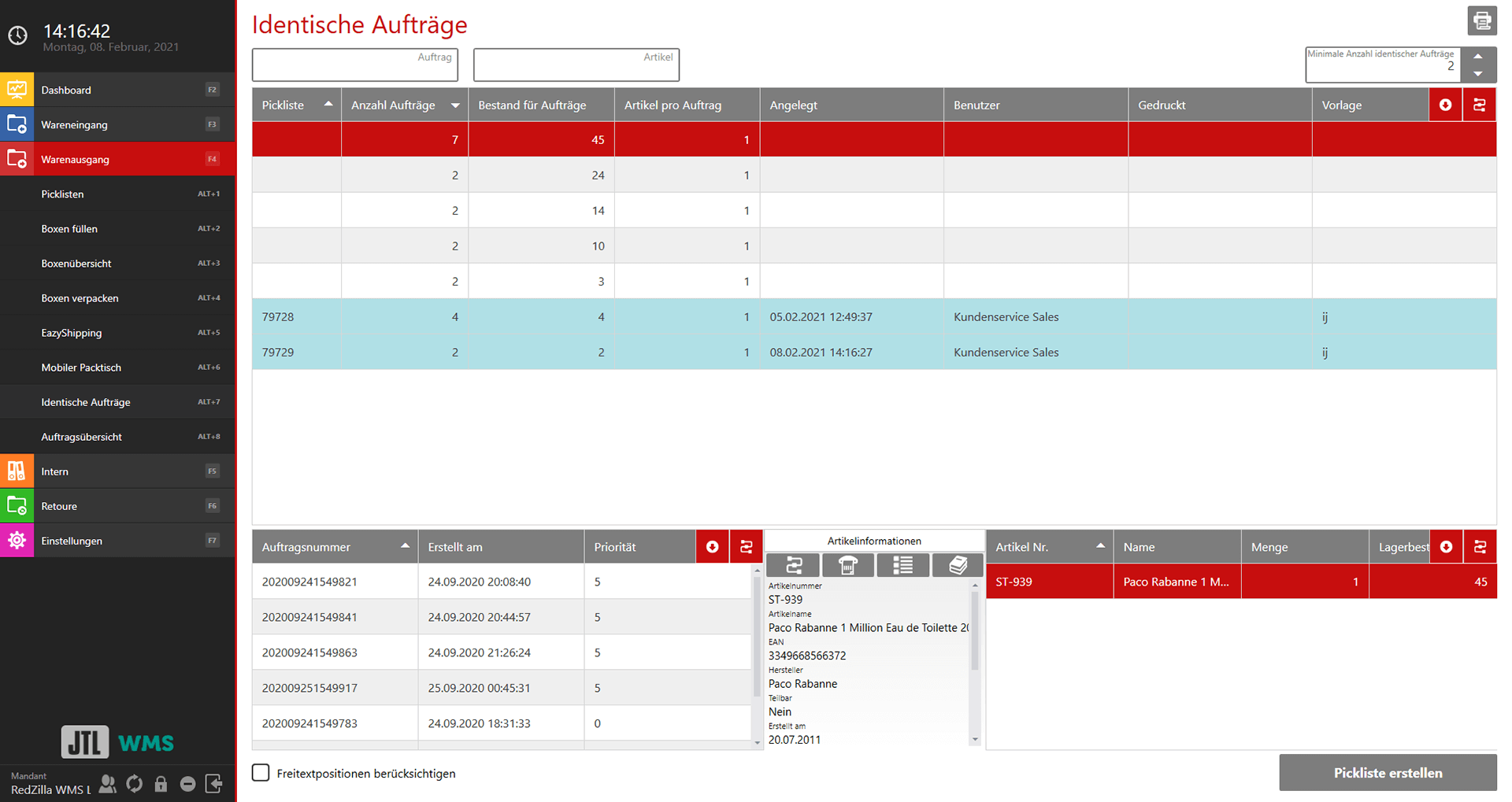
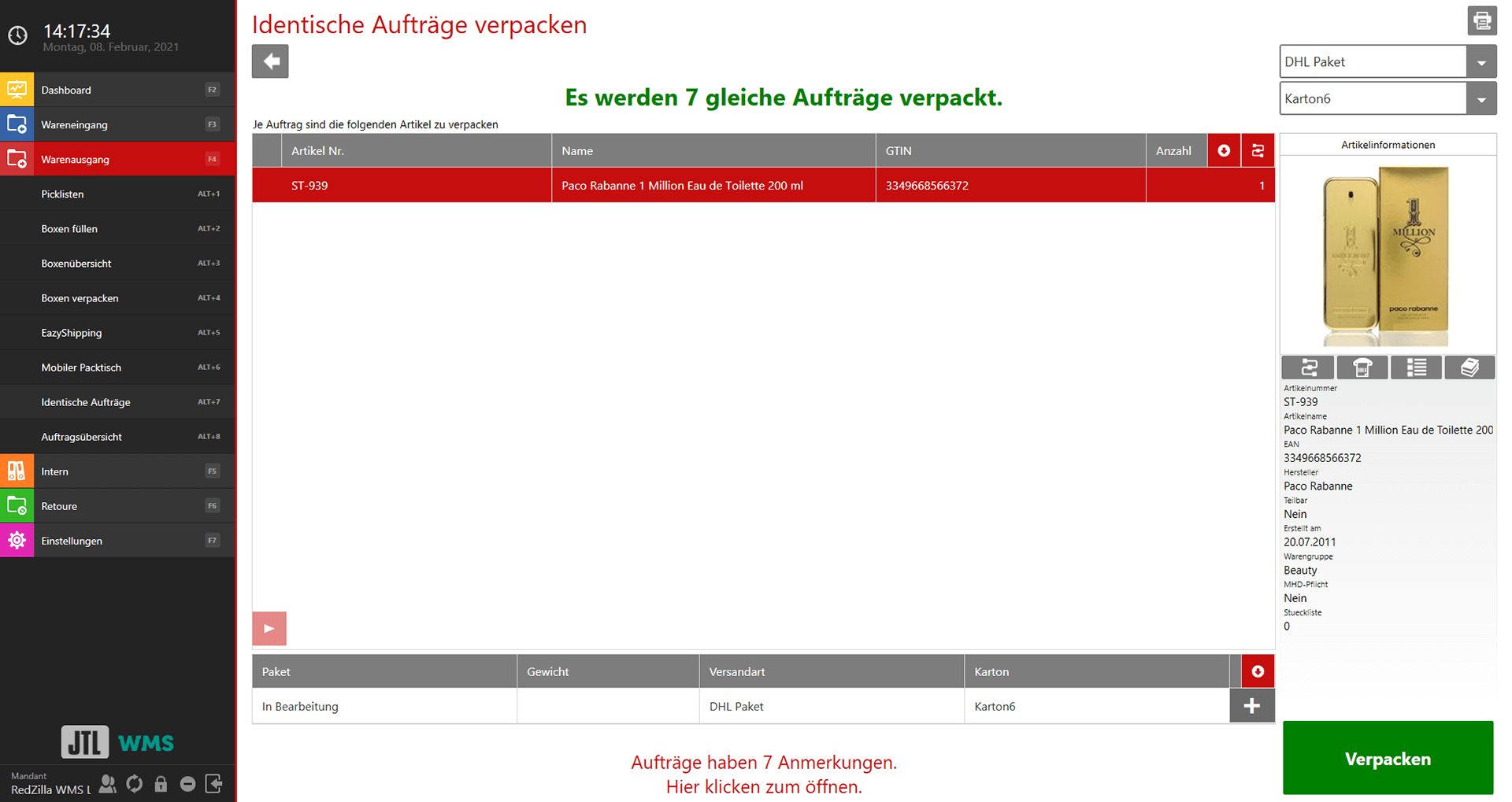
Switch to the “Settings” area via the menu and click on “Warehouse options”. In the “Shipping processes” tab, select the “Activate identical sales orders” check box. You can then use the menu item “Identical sales orders” under “Outgoing goods” in JTL-WMS. There you will now see a number of identical orders per line and the number of items that are required for these orders. Select a line and click on the “Create picklist” button. After selecting the appropriate picklist template, pack all your sales orders using the “Pack” button.
In principle, goods issue via identical sales orders does not differ from EazyShipping.
- You have a lot of sales orders that need to be delivered
- You create a picklist with a previously defined picklist template
- You pick the items with a paper list or via JTL-WMS Mobile
- And then sends the sales orders via JTL-WMS
The main difference is the confirmation of items and sales orders, as it is not necessary to confirm each order individually in the Identical orders process. As you always have a large number of absolutely identical sales orders here, you only check once before goods issue whether the picked items belong to the mass of all orders. Then you pack a large number of sales orders and distribute the shipping labels created in parallel in the last step to the parcels, for example via JTL-ShippingLabels.
For example, if you pack 2,000 identical shipments with two items each, you would have to perform up to 4,000 individual scans with EazyShipping, depending on the setup – with the Identical sales orders process, this is reduced to pure warehouse work (pick & pack) and just two to three clicks in JTL-WMS.
The process is currently not available for JTL-Packing Bench+.
Conclusion
As you can see, the new features of JTL-WMS have a lot to offer. Printer management gives you more flexibility for individual requirements. With GS1-128 bar codes and identical sales orders, you can save a lot of time and avoid errors. But there are three more top functions to come, which we will introduce to you in the second part of our developer diary.